Best Grok Bot plugins for business in 2026
Seven Grok Bot plugins for business, what each lets the bot do on its own, and the rules to set before you connect them.


The best Grok Bot plugins for business let the bot finish a job you'd otherwise do by hand. They can draft an email reply or find out what a customer said on last week's call.
Pick plugins by what they let the bot do on its own. Some plugins only read, while others can send messages or change records in your name.
This guide covers seven Grok Bot plugins worth adding, with what the bot can do in each and what it takes to set one up.
How Grok Bot plugins work
Grok Bot runs on a cloud computer, not on your own machine. Plugins are what let it work inside your apps from there, so it can read and act inside them for you.
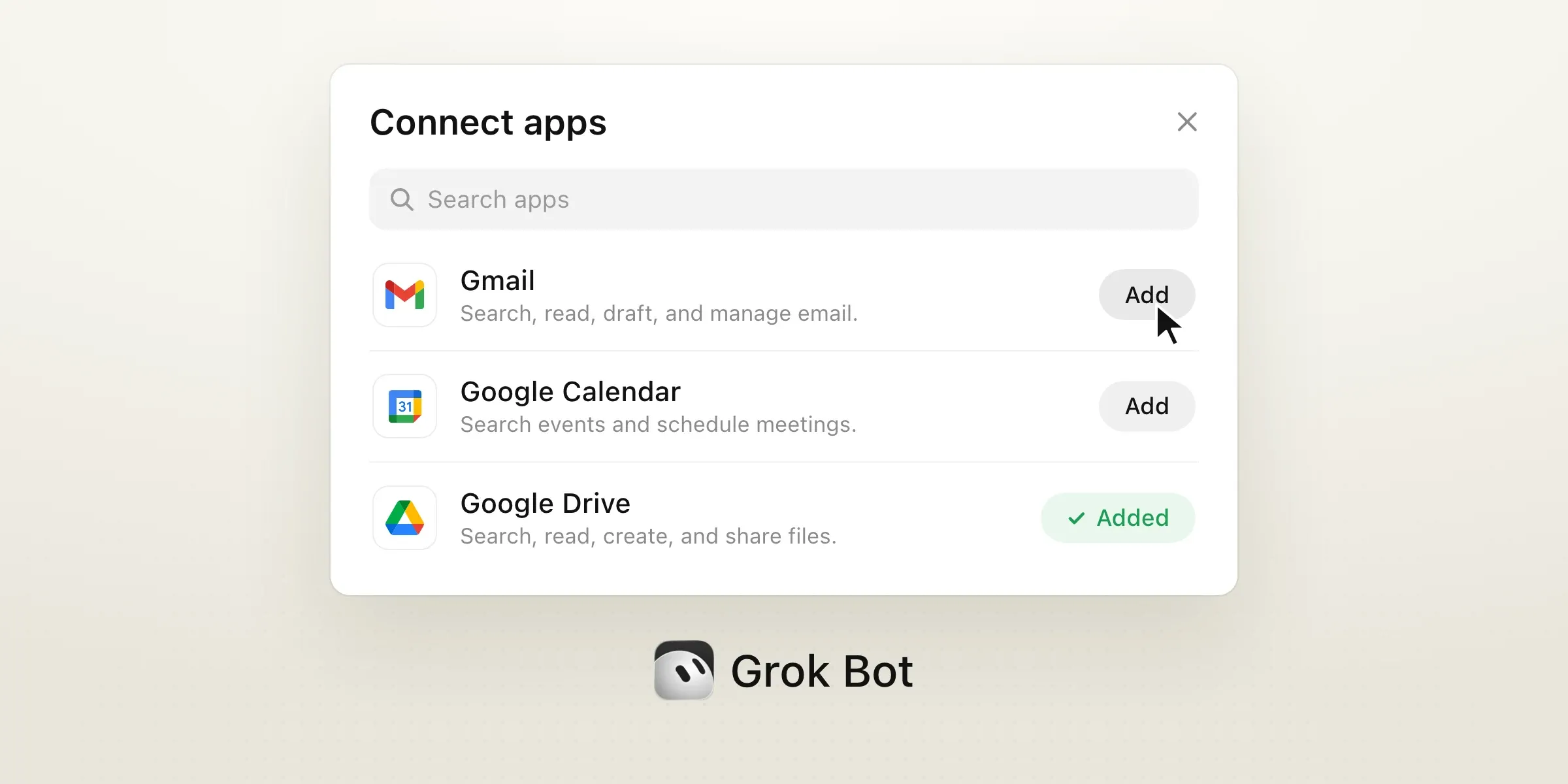
You add them from Connect apps in the sidebar, which is where the plugin marketplace now lives. Browse or search the list to see which apps you can connect and what each one can do. When you find the one you want, choose Add. If the app asks, you sign in, and the plugin is ready to use.
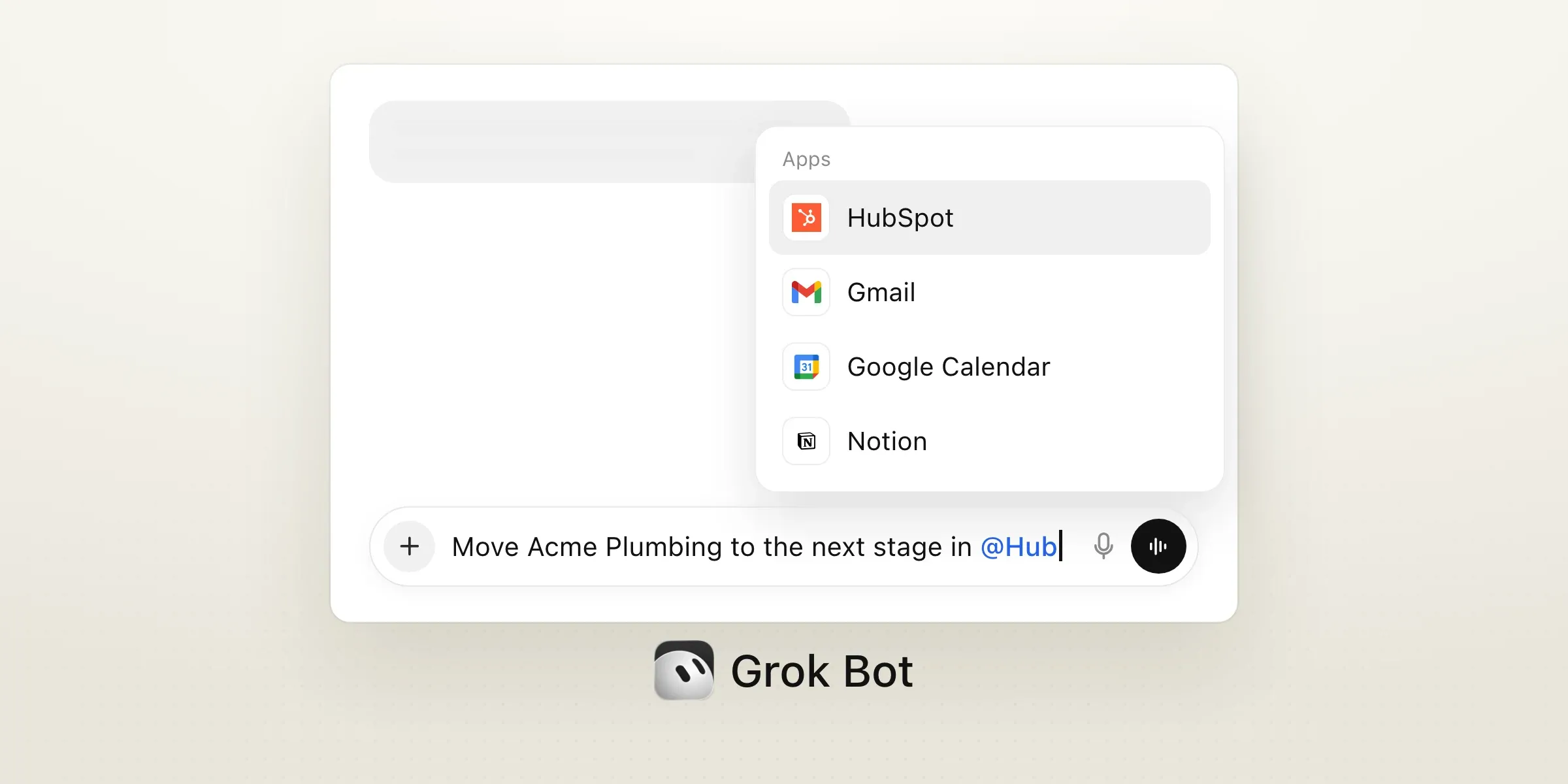
In a chat, you type @ to attach an app to a task, so Grok Bot knows which app to work in for that request. xAI's Grok Bot guide walks through the steps if you want more detail.
Plugins are account-wide: one install works for every bot on your account, not only the bot you set it up for.
Each plugin uses the account you sign in with. It can do only what that account can already do, this means, it can’t give you, or the bot, more access than you already have.
Your sign-in details stay protected. The sign-in tokens stay on the plugin backend, and the bot uses the app's tools without ever seeing them.
Note that Grok Bot isn't the same product as Grok Build, xAI's coding agent. Grok Build has its own plugin catalog, aimed at developers.
The 7 best Grok Bot plugins for business in 2026
These seven plugins cover the work most businesses do every day: email, calendars, documents, customer records and phone calls. They aren’t all equally easy to start with.
Four of the seven need nothing more than a Google or HubSpot account, so if your team already uses those tools, you can connect them in a few minutes at no extra cost. For Allo, the phone plugin, you will need a paid plan.
| Plugin | Best for | What the bot can do | What you need to use it | Built by |
|---|---|---|---|---|
| HubSpot | Keeping customer records current | Search and update contacts, companies, deals and tickets | Any HubSpot account, including the free CRM | Cursor (on HubSpot's own server) |
| Gmail | Inbox triage and replies | Search, read, label and draft email | A Google account | Cursor (on Google's server) |
| Allo | Business calls and texts | Read calls and transcripts, prepare texts and call lists, set up the artificial intelligence (AI) receptionist | Allo Business plan, $32 per user/month billed yearly | Allo |
| Google Calendar | Scheduling | Find times, create and update events, answer invites | A Google account | Cursor (on Google's server) |
| Google Drive | Files and shared docs | Search, read, create, organize and share files | A Google account | Cursor |
| Slack | Team chat | Search, read and send messages as you | A Slack workspace (admin approval may apply) | Slack |
| Notion | Docs and task lists | Search, create and update pages and databases | A Notion workspace | Notion |
How we chose the plugins
Grok Bot uses the plugin marketplace of Cursor, a coding tool. Many of the listings are built for developers. That’s useful if you build software, but not if you run a sales team, a support desk or a small business.
To make this list, we skipped the developer tools and kept only the plugins a business team would use day to day.
We went through it on Oct. 29, 2026, and kept the plugins that pass these tests:
- Listed in Grok Bot's plugin marketplace. You can add it from Connect apps without setting up a server.
- Covers a business job, from email and scheduling to customer records and calls. We left out plugins built for developers, like GitHub, Sentry and Linear.
- Documented capabilities, on the plugin page or in the app maker's own docs. We link the key ones so you can check them.
- Positive third-party reviews (G2, Trustpilot) that confirm the product works well
The table's "Built by" column shows who maintains each plugin. Only the Google Drive plugin runs on Cursor's own server. The others use each company's official tools.
Allo is one of the seven. Its section follows the same format as the other six, including the limits: Grok Bot can't place calls through Allo, and the plugin isn't available on the Solo plan.
HubSpot
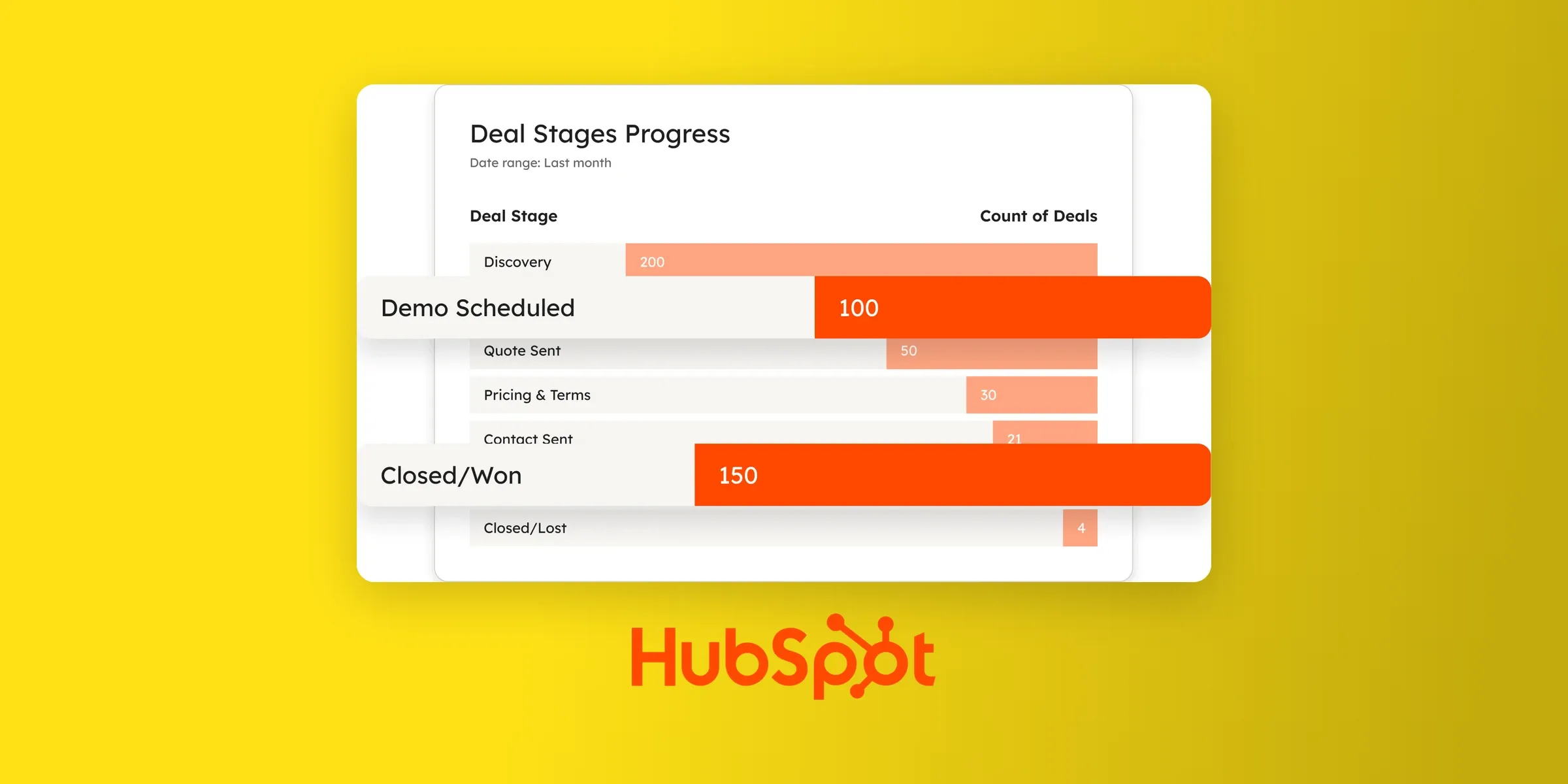
HubSpot is the plugin to add first if your team already tracks customers in the CRM. The bot can search your contacts, companies and deals, and update them for you, so you don’t have to switch tabs to keep your records current.
After a sales call, you can ask it to move the deal to the next stage and log the next step without opening HubSpot.
It's best for sales and support teams already on HubSpot, including the free CRM. A team that keeps customers in a spreadsheet will get more out of the Google Drive plugin.
What Grok Bot can do with HubSpot
- Search and update contacts, companies, deals and tickets
- Read activities and conversations linked to a record
- Draft marketing emails
- Use HubSpot's own remote server, which HubSpot opened to all accounts, with write access
HubSpot plugin cost
The plugin works with every HubSpot account, including the free CRM. A five-person team can connect it for $0.
Accounts with HubSpot's Sensitive Data setting turned on can't share activity and conversation data with the bot. The rest of the CRM still works.
HubSpot pros and cons
Pros
- Works on HubSpot's free CRM
- Updates records instead of only reading them
- Runs on HubSpot's own official server
Cons
- If Grok's HubSpot app isn't available in your account yet, an admin or developer has to create a HubSpot auth app before anyone can connect
- No built-in check before the bot changes a record. An "Ask first" rule is worth adding
Gmail
Gmail is the safest first plugin for most businesses. The bot can read and sort your inbox and write replies, but every reply stays a draft until you send it yourself.
It works for anyone who spends the first hour of the day on email, from a solo owner to a support lead.
Teams on Outlook can use the Outlook plugin instead.
What Grok Bot can do with Gmail
- Search threads and read messages
- Apply and remove labels, and create new ones
- Write replies as drafts
Gmail plugin cost
The plugin is free with the Google account you sign in with. A company Google Workspace account may need an admin to approve Grok before it connects.
It connects one mailbox at a time. If you handle a personal inbox and a shared support inbox, you'll pick one.
Gmail pros and cons
Pros
- Drafts only: nothing reaches a customer without you
- Runs on Google's own Gmail tools
- Labels help the bot sort a busy inbox
Cons
- One mailbox at a time
- Google still labels these tools part of a developer preview
Allo
If your customers reach you by phone, Allo puts those calls in front of the bot. The bot can read every call and transcript and tell you who to call back.
It also can write text messages for you, such as a follow-up after a call, but it shows you each one to approve it before it goes out.
<blockquote class="twitter-tweet"><p lang="en" dir="ltr">@Texas_Twins_Dad I think you can use Allo. Then your Grok Bot can make calls?
https://t.co/BW22NWDnFR</p>— Ryan G (@RyDawg42) <a href="https://x.com/RyDawg42/status/2115947252904837502?ref_src=twsrc%5Etfw">October 29, 2026</a></blockquote>
<script async src="https://platform.x.com/widgets.js" charset="utf-8"></script>Allo fits teams that sell or support customers by phone and want call details next to their email and CRM. The Business plan starts at two seats, which puts the smallest setup at $64 a month billed yearly.
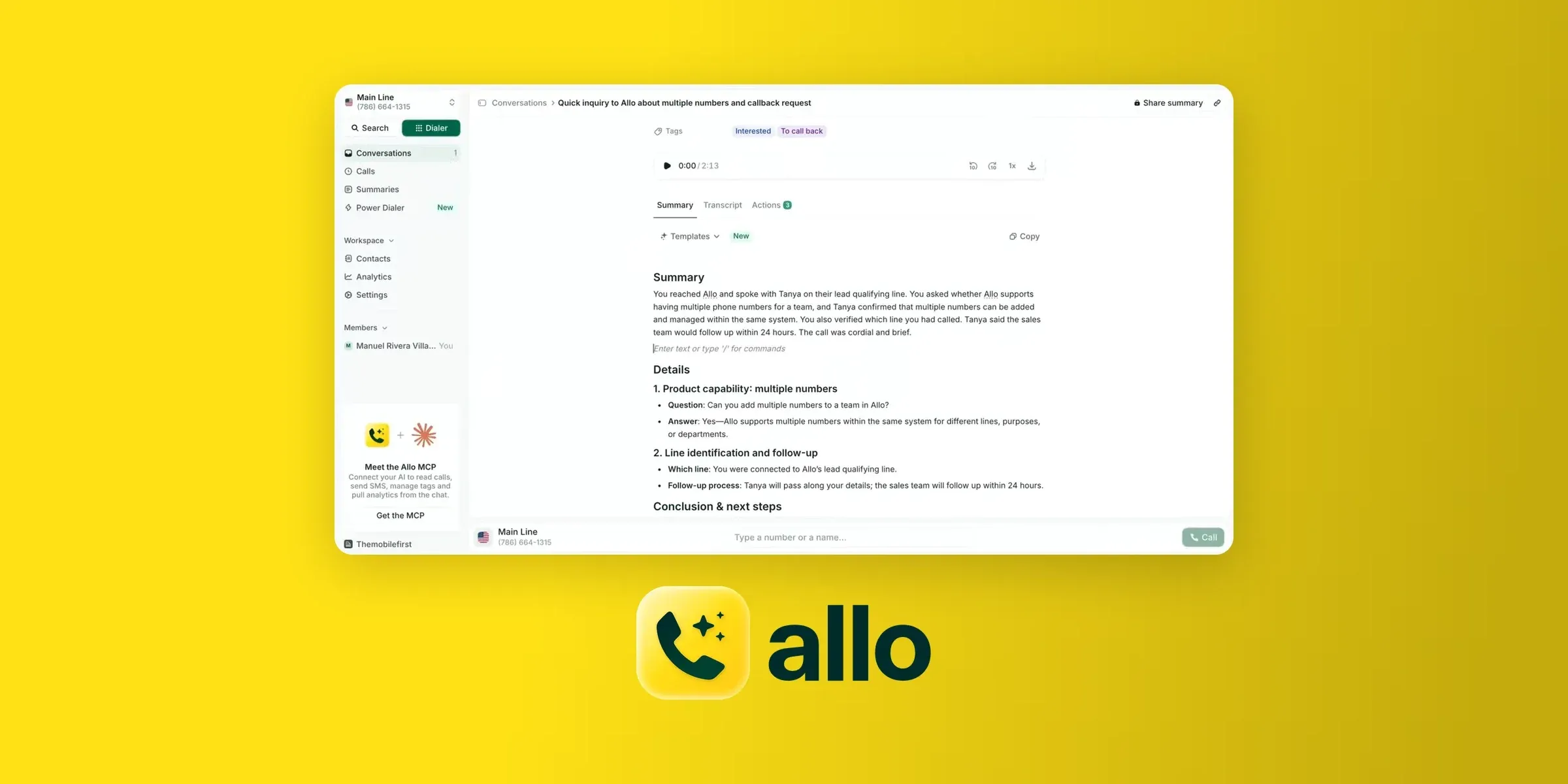
What Grok Bot can do with Allo
- Search calls and texts by date, line, teammate, tag or keyword
- Quote what was said on a call, with the date, from its transcript
- Report call volume, answer rate, outbound results and the best time to call
- Send a text from your Allo line, after you've read it
- Set up the AI receptionist: instructions, voice, website knowledge, on or off
- Add numbers to your Power Dialer queue, which you then start in Allo
- Save call flow changes as a draft for you to publish in Allo
Allo also adds three commands. /allo-briefing covers the day's calls and follow-ups, and /allo-followups finds calls that still need one. /allo-report compares your team with the previous period.
With Allo for Grok Bot, each command can also run as a routine. Set /allo-briefing to run each morning, and the day's missed calls and follow-ups are waiting before you open Allo.
Allo plugin cost
The plugin comes with Allo's Business plan, at $32 per user/month billed yearly ($45 monthly). For a five-person team, that's $160 a month, with the phone system, numbers and AI call summaries included.
The Ultra plan ($100 per user/month billed yearly) adds a parallel dialer and AI agents. The Power Dialer and the AI receptionist are add-ons on both plans.
Allo pros and cons
Pros
- Reads freely, but asks before anything reaches a customer
- Call transcripts and team numbers in the same chat as your email and CRM
- No application programming interface (API) key to copy: you sign in once
Cons
- Grok Bot can't place a call through Allo. You start dialer sessions in Allo
- Not on the Solo plan
- Call flow changes need a final step in the Allo app
Google Calendar
Once the bot handles your email, Google Calendar finishes the job. It can find a free slot and book the meeting, which closes the loop on a scheduling thread.
It pays off for anyone whose week runs through Google Calendar, from a solo consultant to a sales team setting demos.
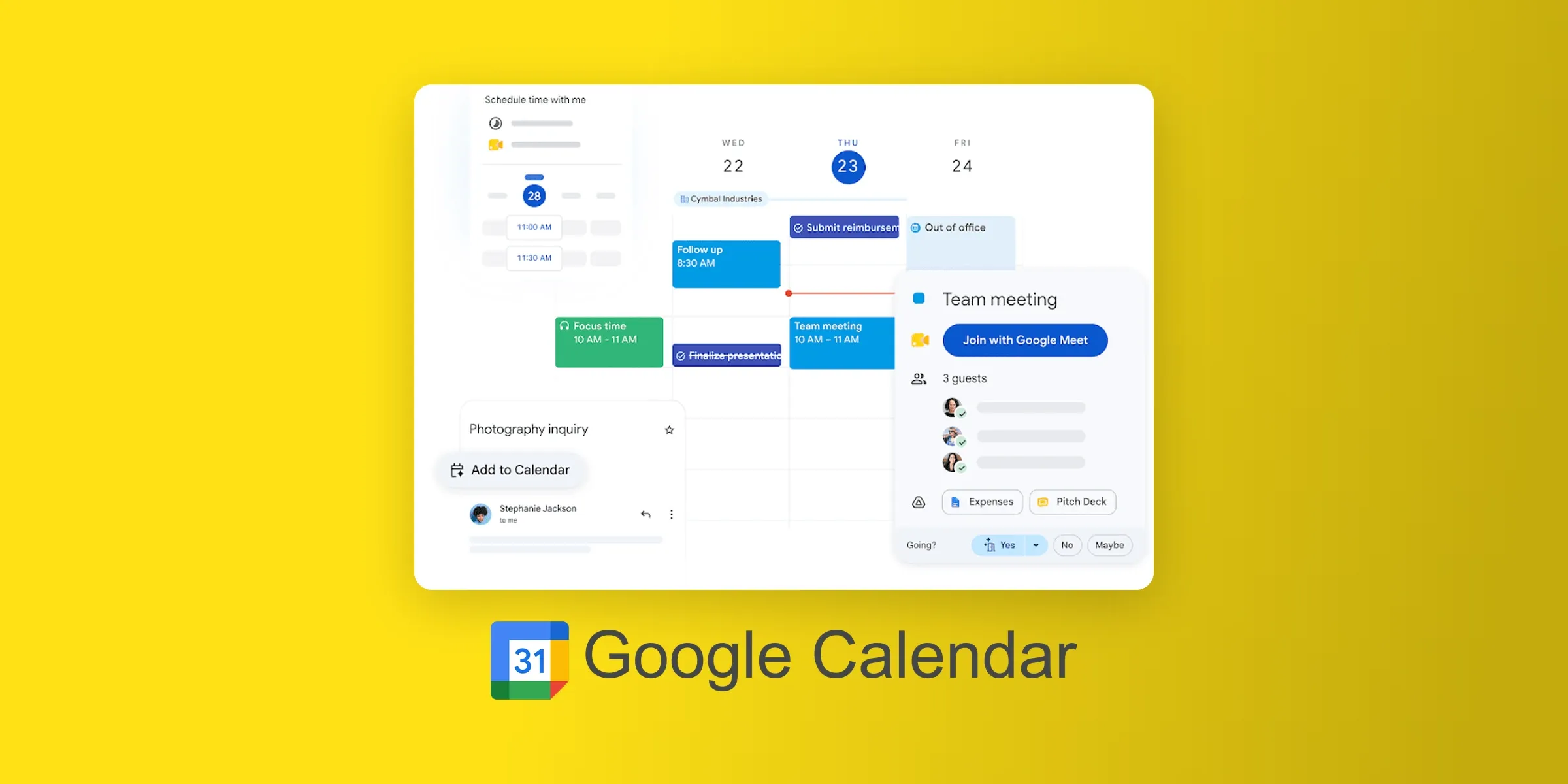
What Grok Bot can do with Google Calendar
- List calendars and search events
- Suggest meeting times
- Create, update and delete events
- Accept or decline invitations
Google Calendar plugin cost
Like Gmail, it only needs the Google account you sign in with, and a company account may need the same admin approval.
Google Calendar pros and cons
Pros
- Covers the whole booking, from finding a time to creating the event
- Runs on Google's own Calendar tools
Cons
- Can create and delete events without asking first
- Google still labels these tools part of a developer preview
- Can't change Google Meet settings or add a Zoom link
Google Drive
Google Drive is the plugin for teams whose work lives in shared files. The bot can find a file, read it, create a new one in the right folder and share it.
Teams that run on Docs and Sheets get the most from it. The plugin can also turn notes or a comma-separated values (CSV) file into a Doc or Sheet and export a PDF.
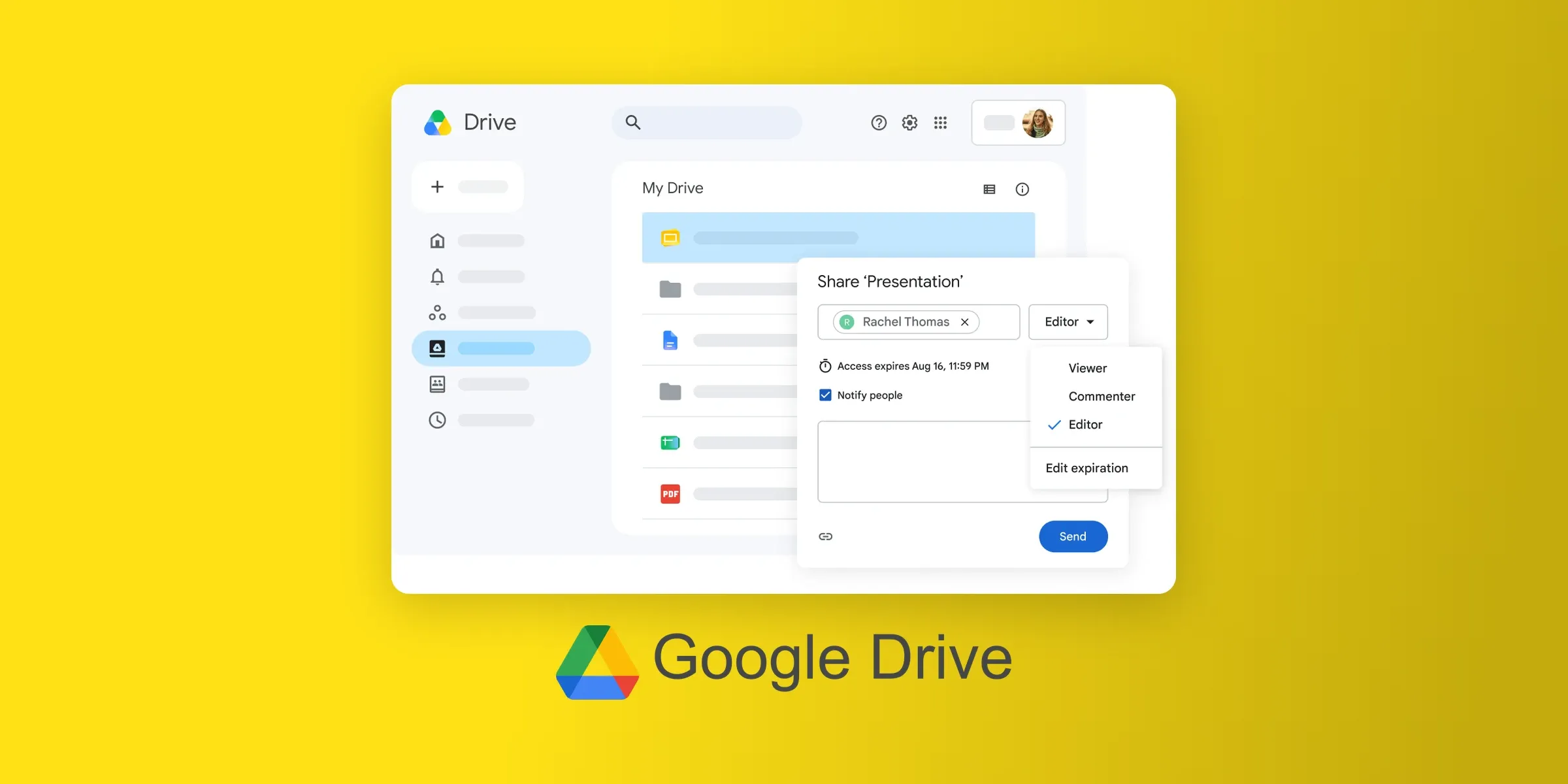
What Grok Bot can do with Google Drive
- Search files and folders, and read their contents
- Create, rename, move and organize files
- Share files and manage comments
- Convert notes or CSV files into Docs or Sheets, and export PDFs
Google Drive plugin cost
There's no charge beyond your Google account. Files the bot creates count toward your Drive storage, like any file you make yourself.
Google Drive pros and cons
Pros
- Creates files where they belong instead of dropping them in one folder
- Handles comments, not only files
Cons
- Can share files. An "Ask first" rule for sharing is a good idea
- Runs on Cursor's server, not Google's, which puts another company between the bot and your files
Slack
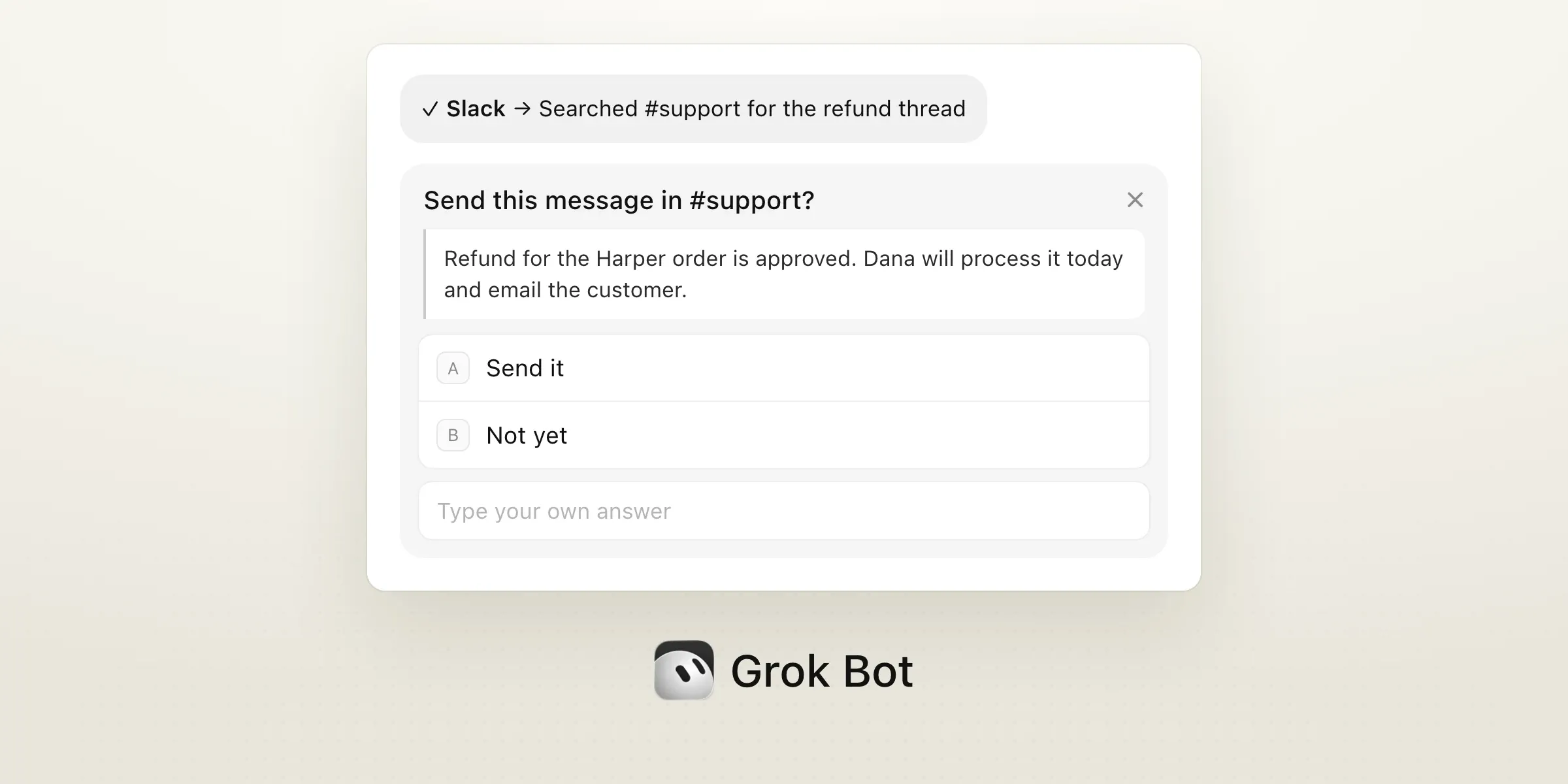
Slack built this plugin itself, and it works as you in your workspace. The bot can search conversations and send or schedule messages, which helps when the answer to a question is buried in a channel.
If your team settles refunds and schedule changes in Slack, the bot can find those decisions when a task depends on them.
Most of the plugin's eight skills are for developers building Slack apps. Business users will mostly use its messaging tools: search, send and schedule.
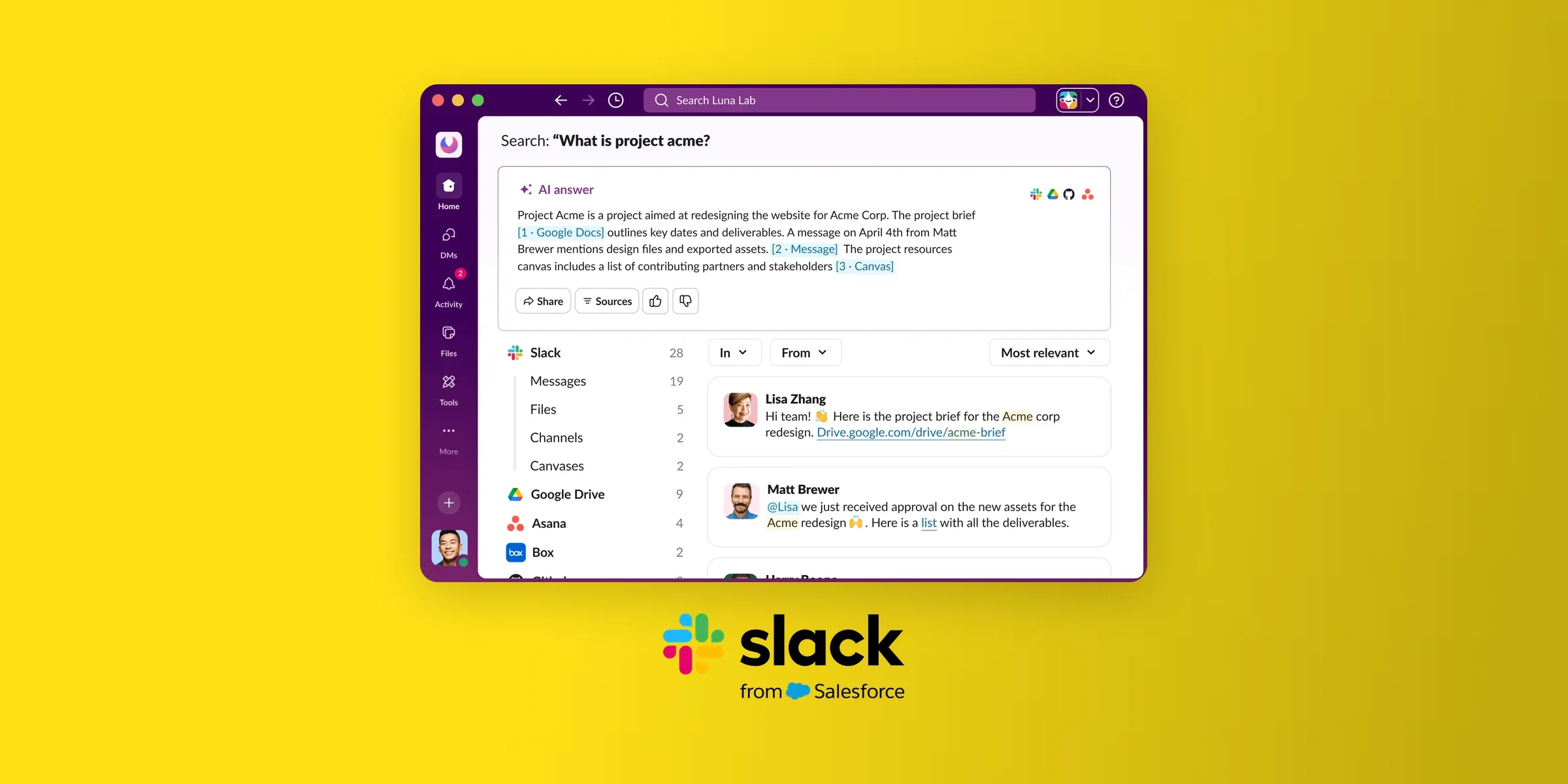
What Grok Bot can do with Slack
- Search messages, files, channels and people
- Read channels and threads
- Send, draft and schedule messages, and add reactions
- Create and update canvases
Slack plugin cost
Slack's docs don't tie the connection to a paid plan.
Slack lets workspace admins approve and manage every app that connects this way. You may need an admin's OK first.
Slack pros and cons
Pros
- Built by Slack
- Messages go out under your own name, and teammates see who sent them
Cons
- Sends messages under your name with no built-in check
- Most of its skills are for developers
Notion
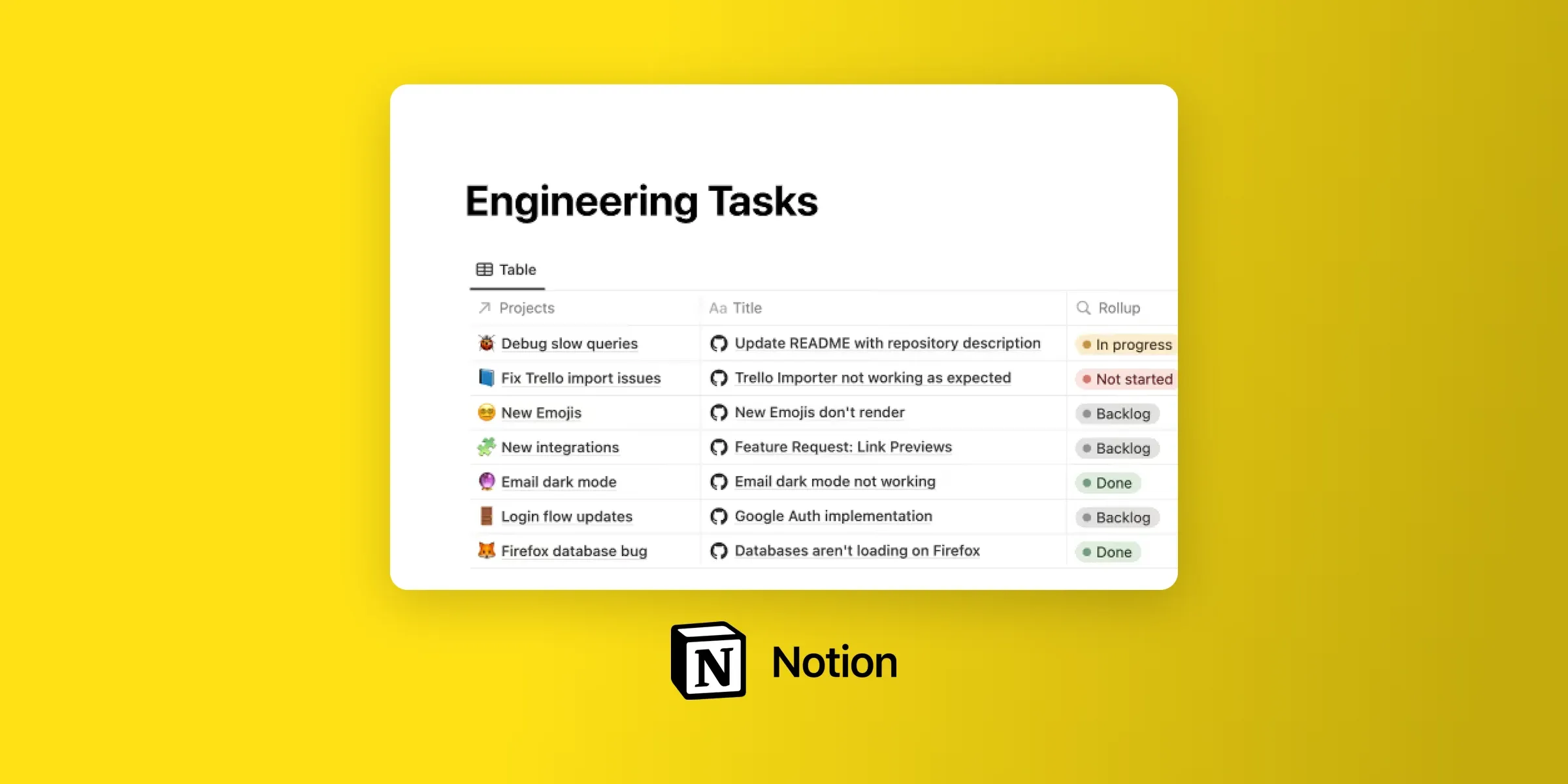
Notion maintains its own plugin, which covers your docs and task lists. The bot can find a page or create a task with a due date and owner.
It's best for teams that keep their processes and projects in Notion. Its 14 skills include ready-made actions like creating a task or querying a database.
What Grok Bot can do with Notion
- Search pages and databases
- Create pages, database rows and tasks
- Update existing records
- Publish content to your workspace
Notion plugin cost
The plugin works on every Notion plan, including the free one. Business and Enterprise plans add higher request limits and some extra search filters.
It works with any content your Notion account can reach. Limiting which apps members can connect needs Notion's Enterprise plan.
Notion pros and cons
Pros
- Built by Notion, with 14 ready-made skills
- Respects your existing page access
Cons
- Only Enterprise workspaces can limit which apps members connect
- Can publish content to shared pages
What the plugins let Grok Bot do on its own
A plugin that reads your inbox and a plugin that sends email for you carry different risks. Before you add one, check two things:
- what it can change
- whether anything stops for your OK.
Five of the seven plugins have no documented check of their own. They act as soon as the bot decides to.
| Plugin | What the bot can read | What the bot can change | Built-in check before it acts |
|---|---|---|---|
| HubSpot | Contacts, companies, deals, tickets, activities | CRM records, marketing email drafts | None documented |
| Gmail | Threads, messages, labels, drafts | Drafts and labels | No send tool: you send from Gmail |
| Allo | Calls, texts, transcripts, team analytics | Texts, tags and notes, AI receptionist, dialer queue, call flow drafts | Shows each text before it goes out; call flows saved as drafts |
| Google Calendar | Calendars and events | Creates, updates and deletes events; responds to invites | None documented |
| Google Drive | Files, folders, comments | Creates, organizes, shares and exports files | None documented |
| Slack | Messages, files, channels, threads, people | Sends and schedules messages, canvases | None documented |
| Notion | Pages and databases you can access | Pages, database rows, tasks | None documented |
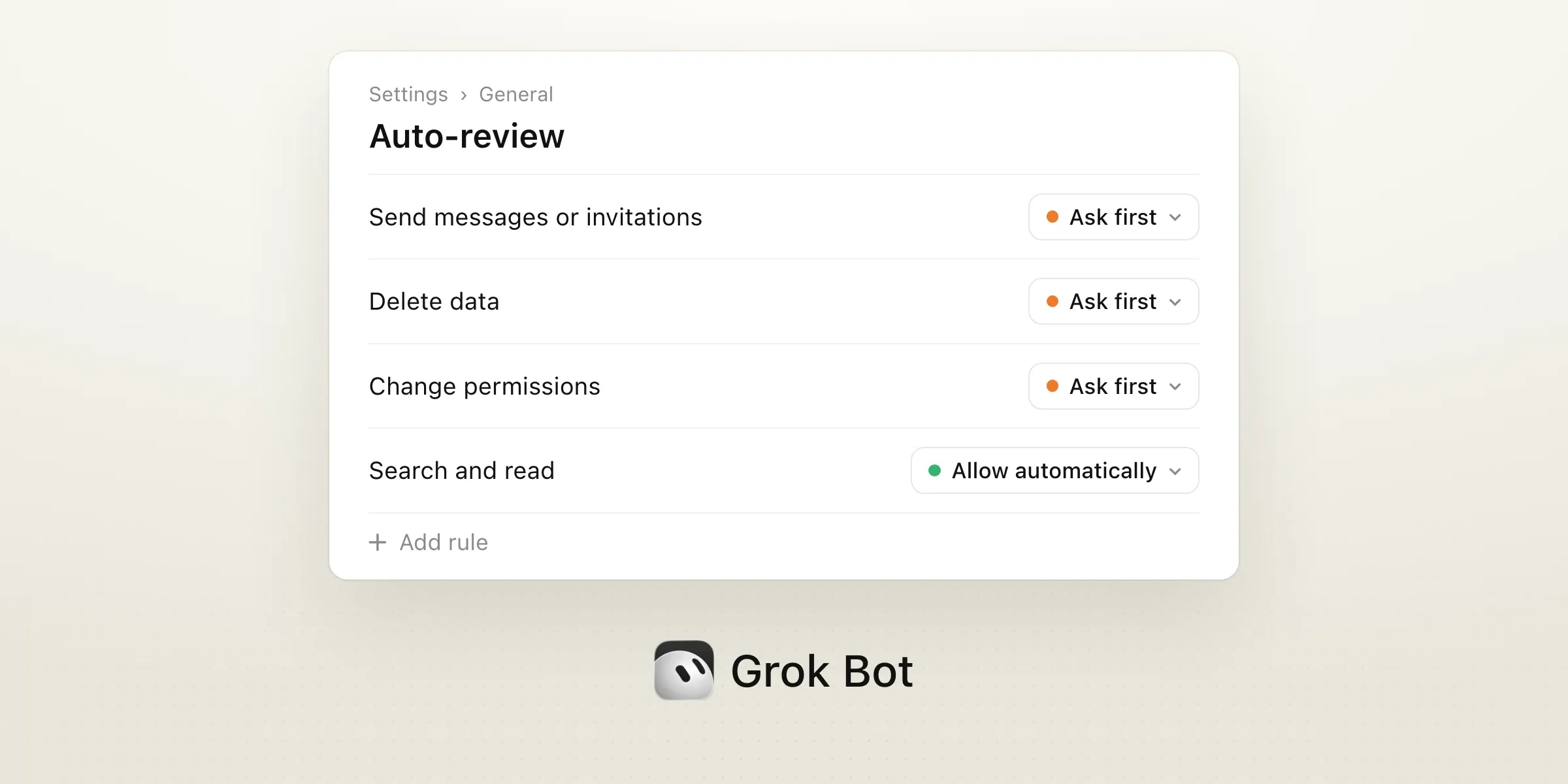
Where a plugin has no built-in check, Grok Bot's own rules decide. In Settings, General, Auto-review, you can add "Ask first" rules that always stop matching actions for your OK.
xAI recommends clear limits for sending messages or invitations, publishing, deleting data and changing permissions. If an "Ask first" rule and an "Allow automatically" rule both match, "Ask first" wins.
On a team plan, your admin decides which plugins are available. A blocked plugin shows Disabled by team admin, and your own rules can only make the team's rules stricter.
How to choose your first plugins
Start with the job you repeat most often. Two or three plugins that cover a full task beat ten that each cover a piece of one.
Which plugins handle email and scheduling?
Gmail and Google Calendar, added together. Gmail drafts the reply, and Calendar books the meeting the reply promises.
Teams on Microsoft 365 can use the Outlook plugin instead.
Which plugin keeps customer records current?
HubSpot, if that's your CRM. The bot can update a deal or a contact right after the conversation it came from, which keeps the record from going stale.
Which plugin brings your customer calls into the bot?
Allo, if your business calls customers. The bot can quote what a customer said on a call and line up who to call back.
Which Grok Bot plugins you should start with
Grok Bot gets useful for a business once it can finish a task inside the apps you already pay for. The right plugins depend on where your customer work happens.
- Start with HubSpot if you track customers in a CRM. It works on the free plan and keeps records current.
- Add Gmail for the safest first step. Every reply stays a draft until you send it.
- Add Allo if customers call you. The bot reads your calls and transcripts, and it shows you every text before it goes out ($32 per user/month billed yearly).
- Add Google Calendar once email is covered, to book what your replies promise.
- Choose Google Drive, Slack or Notion based on where your team keeps files and conversations.
Whichever you pick, set "Ask first" rules before you connect a plugin that can send or delete. A plugin only has your access, but it uses all of it.
FAQ
Can Grok Bot use plugins when I'm not around?
Yes, through routines. A routine can run a plugin task on a schedule, like Allo's daily call briefing. When a routine reaches an action that needs your OK, it waits for you. If nobody approves it within 30 minutes, the request shows Expired and the action doesn't run.
How do I disconnect a plugin?
Remove it from Connect apps in Grok Bot. Since plugins are account-wide, this removes it for every bot on your account. To cut off access completely, also revoke Grok Bot's authorization in the app itself, like your Google account settings or HubSpot.
Do Grok Bot plugins cost extra?
None of the plugin listings in this guide shows a price for the plugin itself. You pay for the app it connects to, like an Allo Business plan. For five people, HubSpot's plugin costs $0 on the free CRM, while Allo's Business plan comes to $160 a month.
Can a teammate's bot use my plugins?
Not without asking. Plugins sign in with your own accounts, and a teammate's shared Bot asks before it uses them. On a team plan, your admin also decides which plugins anyone on the team can add.
Can I connect two accounts for the same app?
It depends on the app. Gmail connects one mailbox at a time, while apps like Notion let you add a second account. If you need two inboxes, pick the one where customer email lands. The other stays in Gmail as usual.
Do plugins work in the Grok Bot mobile app?
Yes. On mobile, tap your avatar and select Connect apps. Plugins you add there are the same ones your bots use on desktop, since they're tied to your account.


