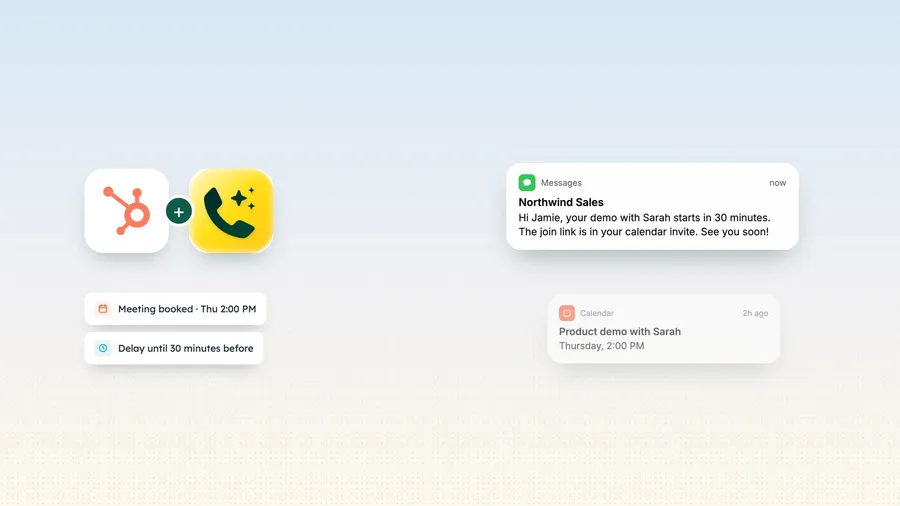
HubSpot books the meeting and emails a reminder. Email is easy to miss. A text from your business number, 30 minutes before the call, is not. This guide shows how to send that text automatically with a HubSpot workflow and Allo, which adds a Send SMS action to HubSpot workflows.
The setup in one look
• A contact-based workflow triggered by Meeting booked, limited to one scheduling page, with re-enrollment on.
• The meeting's start time copied to a date and time property, then a delay until 30 minutes before it.
• A branch that skips canceled meetings and contacts with no mobile number.
• Allo's Send SMS action, sending from your Allo number. The text is logged on the HubSpot contact.
What you need
- HubSpot with workflows. Workflows come with Professional and Enterprise subscriptions (Marketing Hub, Sales Hub, Service Hub or Data Hub).
- A HubSpot scheduling page that your contacts book through.
- Allo on a plan with the HubSpot integration (Business and above), connected from Settings > Integrations in Allo by an admin or a manager.
- An Allo number cleared for texting. In the US and Canada that means an approved 10DLC registration, in France a Sender ID. The UK and Belgium need nothing. See Set up texting.
- A phone number on the contact, ideally in the Mobile phone number property, and the contact's agreement to receive texts from you.

Tip
Connect from Allo, not from the Marketplace
The integration is installed from Allo at web.withallo.com. Connecting from the HubSpot Marketplace is not supported and causes connection errors. HubSpot integration guide.
Step 1: Choose the right trigger
In HubSpot, go to Automation > Workflows, create a workflow from scratch and pick Contact-based. The reminder goes to a person, so the contact is the record that should travel through the workflow.
- Set the event. Under triggers, choose When an event occurs, then Meeting booked. HubSpot fires it when a contact books through a scheduling page, and also for meetings logged or scheduled from a record.
- Limit it to one booking page. Refine the event with a filter on the meeting link, so only bookings from your demo or consultation page enroll. Without it, every meeting your team logs by hand would trigger a text.
- Turn on re-enrollment. A customer who books again next month should get a reminder again. Re-enrollment lets the same contact enter the workflow each time the event fires.
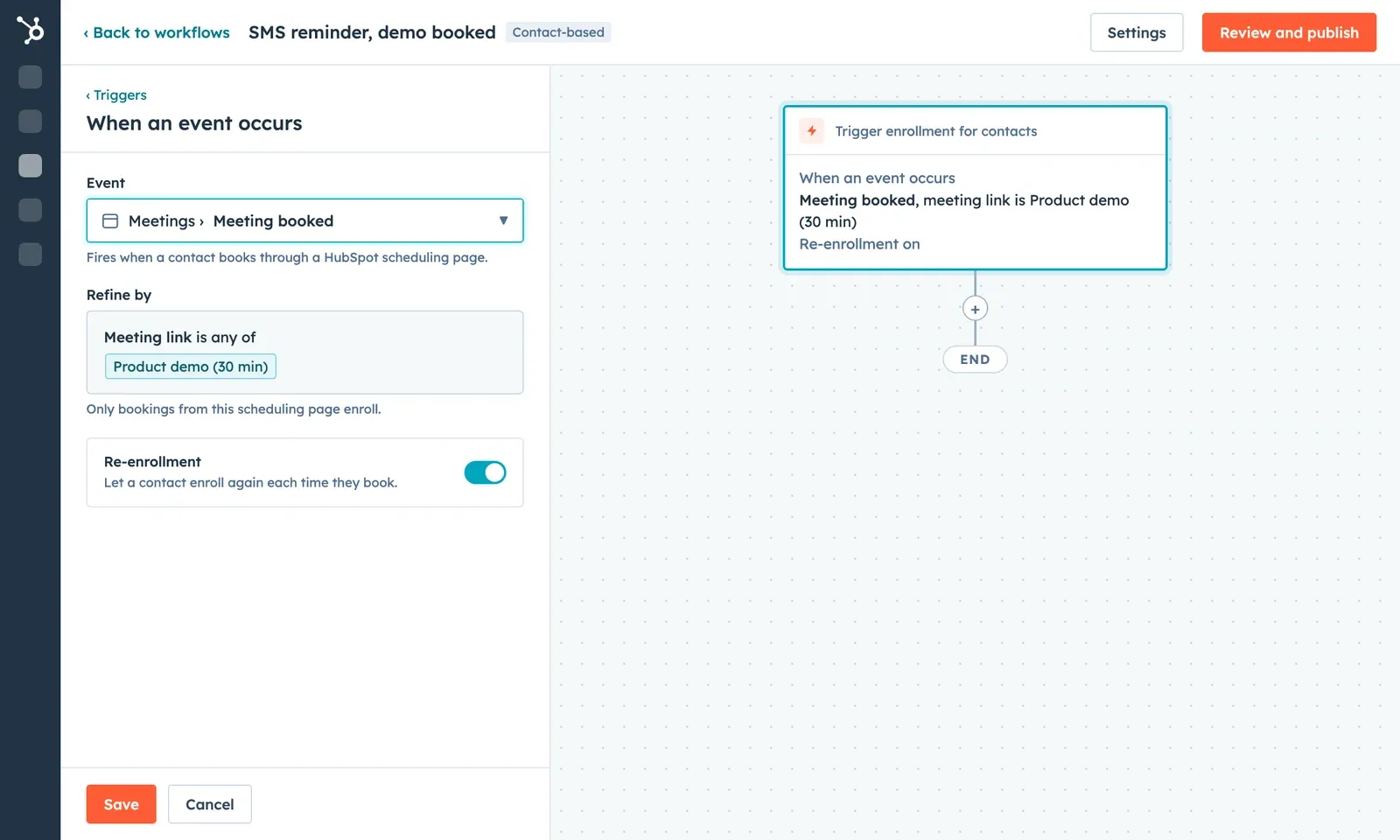
A contact-based workflow on the Meeting booked event, limited to one scheduling page.
Step 2: Schedule the reminder from the meeting's start time
This is the step most setups get wrong. A plain Delay of 2 days counts from the moment of booking, not from the meeting. A contact who books three weeks out would get the text three weeks early. The reminder has to be anchored to the meeting's own start time.
- Create a date and time property. In Settings > Properties, create a contact property called Next meeting start, field type Date and time picker. A date-only property drops the hour, and the reminder would go out at midnight.
- Copy the start time onto the contact. Add an Edit record action that sets Next meeting start. In the value field, insert data from the associated meeting (most recently created) and pick its Start time.
- Delay until 30 minutes before. Add a Delay action, choose to delay until a date property, select Next meeting start and set 30 minutes before.
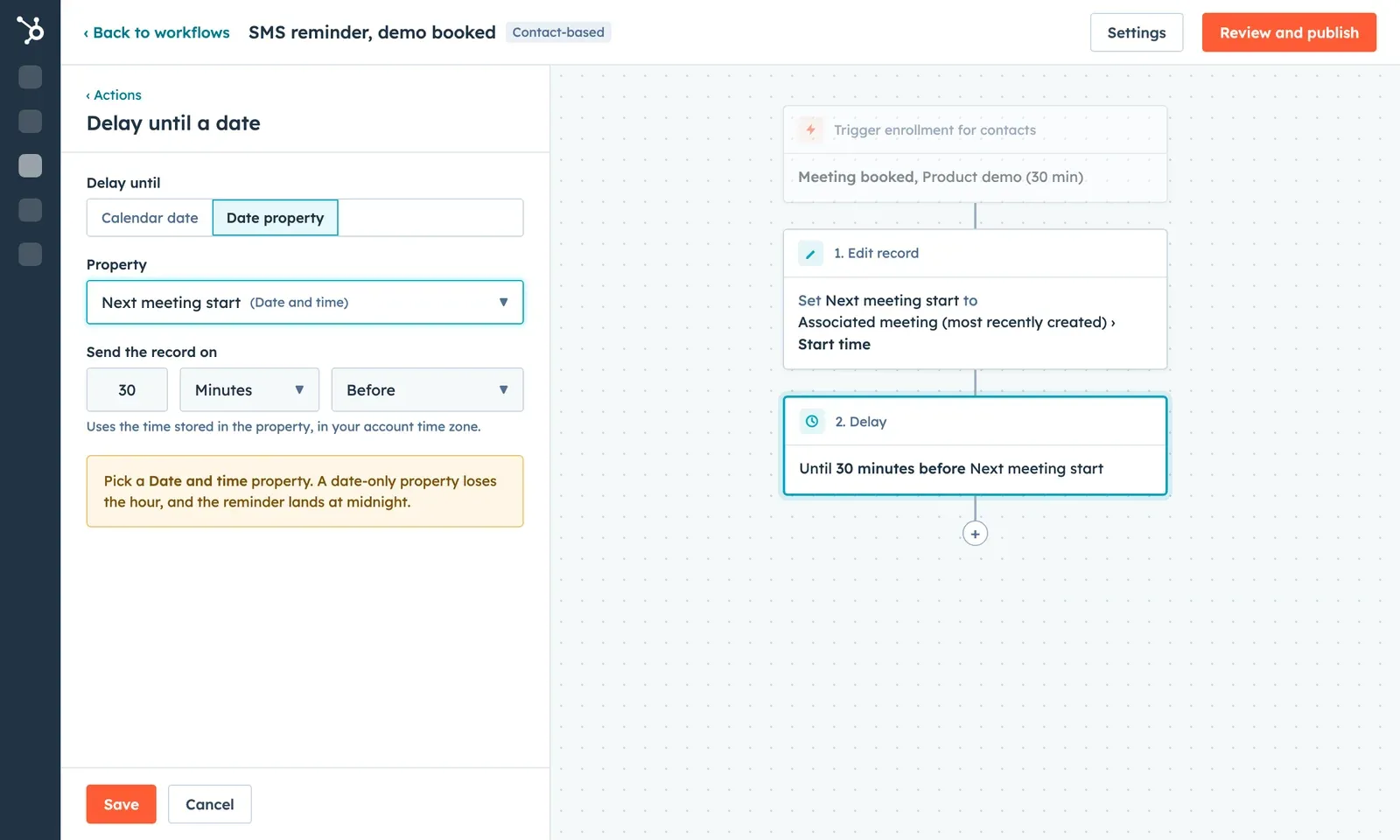
Copy the start time first, then wait until 30 minutes before it.
Step 3: Skip canceled meetings and missing numbers
Between booking and the meeting, things change. Add an If/then branch right after the delay so the text only goes out when it still makes sense:
- The associated meeting's outcome is not Canceled.
- The contact's Mobile phone number is known.
- Contacts that match continue to the SMS. Everyone else goes to the end of the workflow.
Step 4: Send the SMS through Allo
On the branch that matched, add an action and look for Allo in the list of apps. Choose Send SMS and fill in three fields:
| Field | What to set | Why |
|---|---|---|
| From number | The Allo number your contacts know | The text comes from your business line, not a random short code. Replies land in Allo. |
| Recipient phone number | Contact › Mobile phone number | Use the property the branch checked, so the text never goes to an empty field. |
| Message | Your reminder, with personalization tokens | First name and contact owner fill in for each contact. |
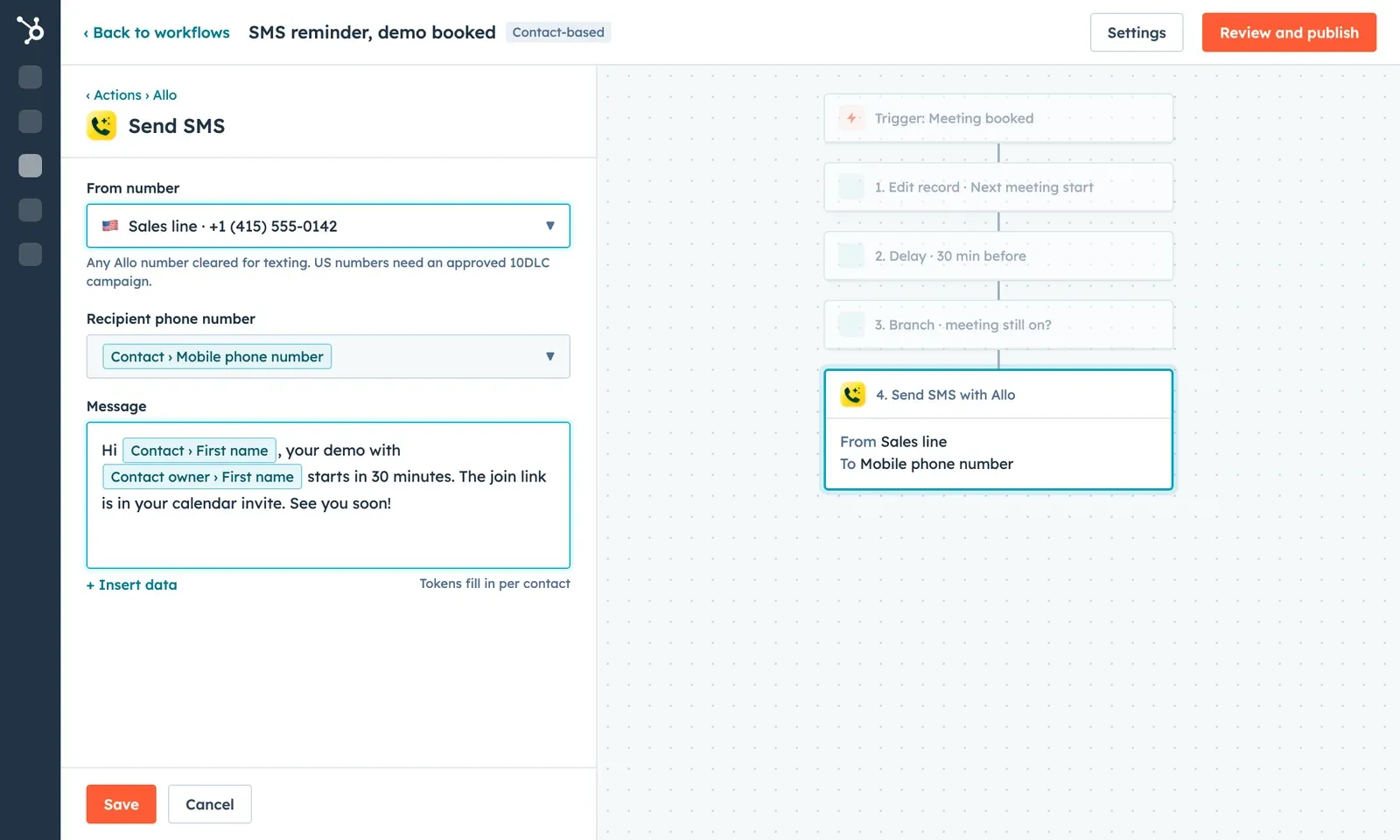
The Allo action: pick the number, map the recipient, write the message.
Tip
A message that works:
Hi [Contact first name], your demo with [Contact owner first name] starts in 30 minutes. The join link is in your calendar invite. See you soon!
Keep it under 160 characters with plain punctuation and no emoji, so it stays one SMS segment. Why a single emoji can double the cost of a text. If you want the join link in the text itself, copy the meeting's link into a contact property with a second Edit record action, the same way as the start time, and insert that property instead.
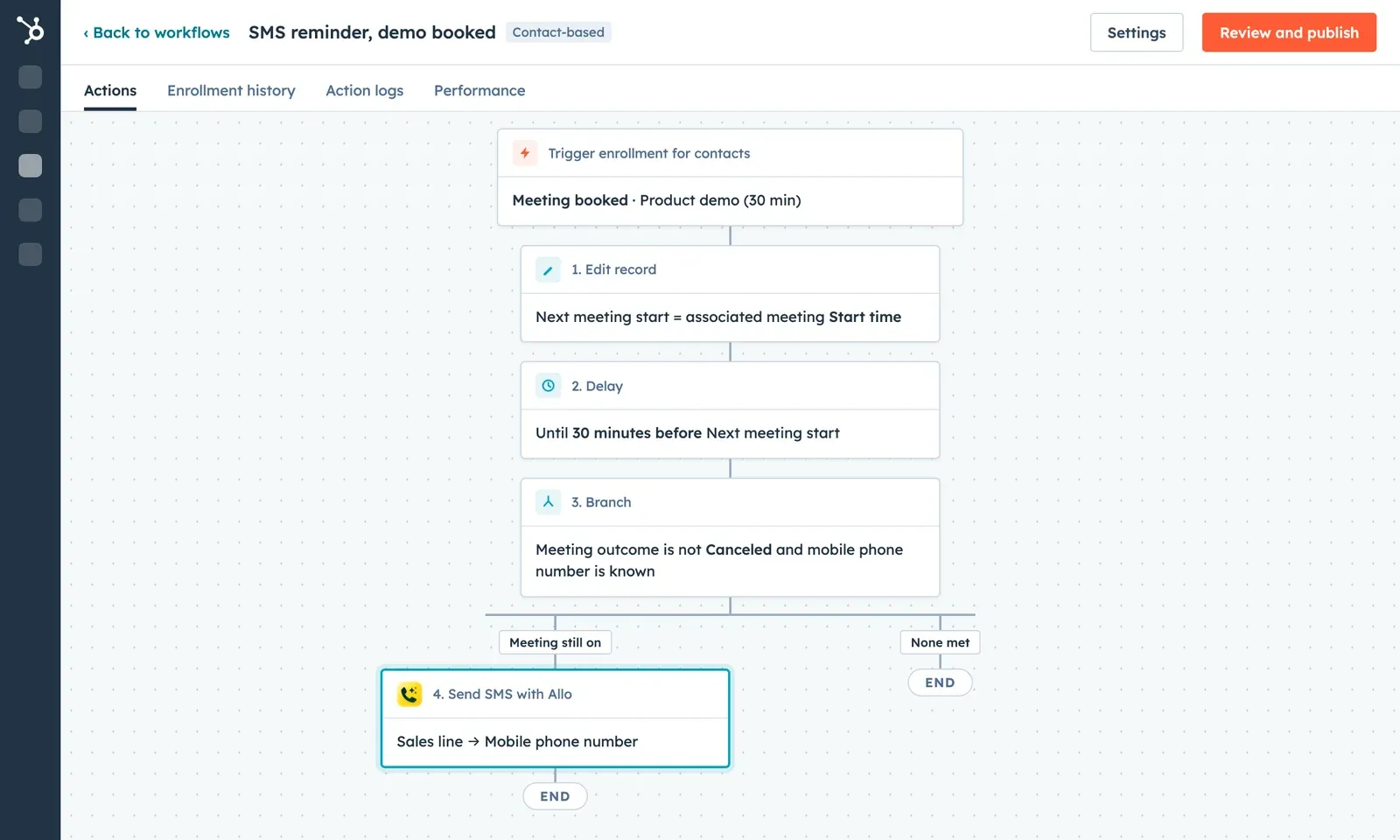
The full workflow, four actions.
Handle changes and missing data
| Situation | What happens | What to do |
|---|---|---|
| The contact cancels | The branch sees the canceled outcome and skips the text. | Nothing, as long as the branch checks the meeting outcome. |
| The contact reschedules | The copied start time on the contact does not update by itself. | Test a reschedule from your booking page and check whether the reminder follows the new time. If it does not, unenroll the contact on reschedule and let the new booking enroll them again. |
| Booked less than 30 minutes before the start | The reminder time is already in the past when the contact reaches the delay. | Book a test meeting 10 minutes out and check the result. If a text arriving after the start is a risk, add a branch before the delay. |
| No mobile number | The branch sends the contact to the end. | Make the phone field required on your scheduling page form. |
| Two meetings booked at once | A contact already waiting in the workflow is not enrolled a second time until they leave it. | Keep one reminder workflow per booking page, or accept one reminder per contact at a time. |
Test before you turn it on
- Create a test contact with your own mobile number.
- Book a meeting 45 minutes out through the real scheduling page, not by logging it by hand.
- Open the workflow's Enrollment history and check the contact entered, and that Next meeting start holds the right date and hour.
- At the 30-minute mark, check the text arrived, from the number you picked, with the tokens filled in.
- Open the contact in HubSpot. Allo logs SMS as Communications, so the reminder appears on the record.
- Repeat with a cancellation and a reschedule, then turn the workflow on.
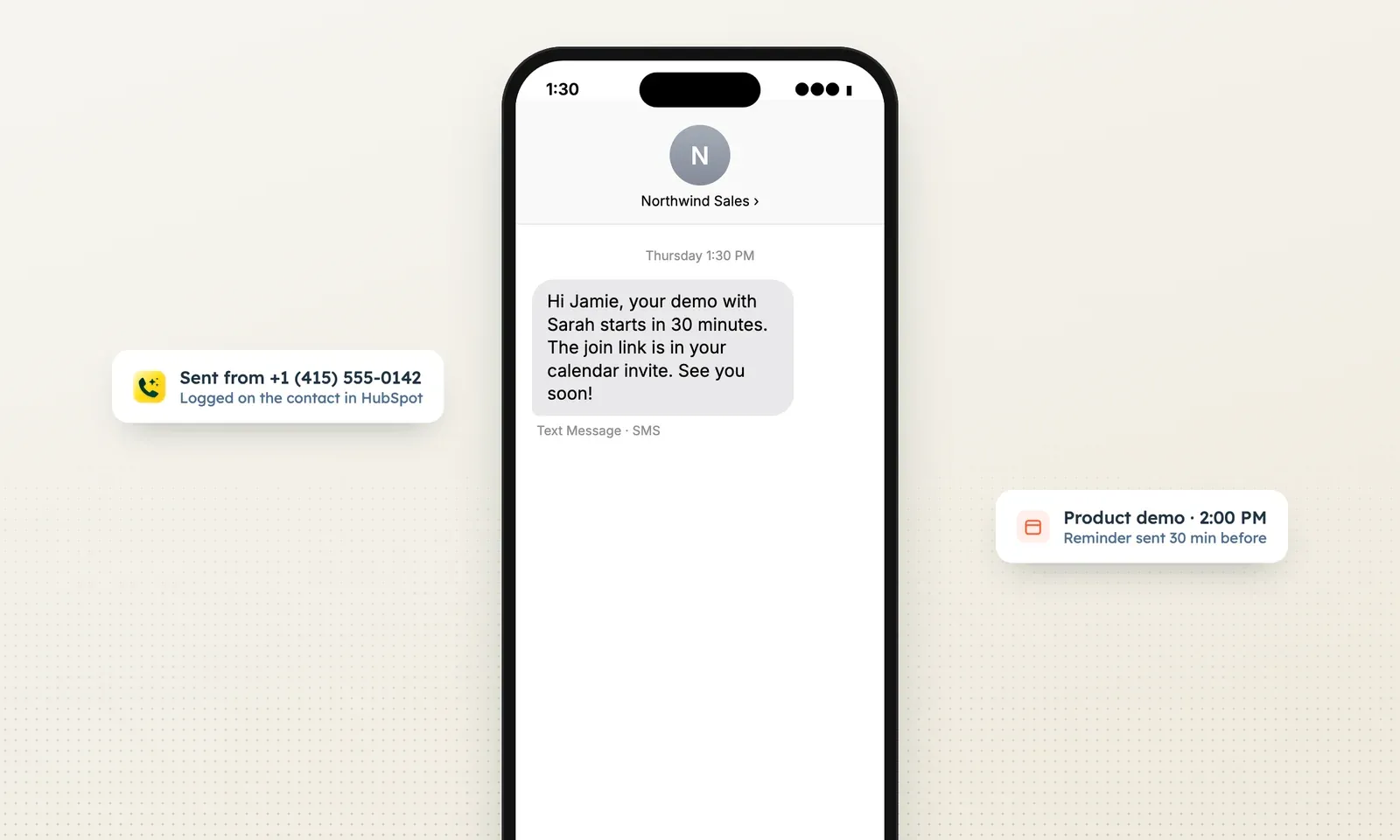
What the contact gets, half an hour before the call.
Troubleshooting
Why didn't the contact enter the workflow?
Check that the meeting was booked through the scheduling page in your trigger filter, that the workflow was on when the booking happened, and that re-enrollment is enabled if the contact has been through the workflow before.
Why is the meeting's start time not available in the delay?
A delay reads properties of the record that is enrolled, and here that is the contact, not the meeting. Copy the start time onto a contact property with Edit record first, and make sure that property is a Date and time picker, not a date picker.
Why can't I see an Allo action in my workflow?
The Allo integration has to be connected from Allo, by an admin or a manager, at Settings > Integrations. If it was installed from the HubSpot Marketplace, disconnect and reconnect from Allo. Also check that your HubSpot subscription includes workflows.
Why did the SMS arrive at the wrong time?
Almost always one of three things: the property is date-only so the hour was lost, the delay counts from enrollment instead of from Next meeting start, or the meeting was rescheduled after the start time was copied. Check the property value on the contact against the meeting.
Why didn't the text go out at all?
Check the workflow's action log for the Send SMS step, then the SMS troubleshooting guide. In the US and Canada, a number without an approved 10DLC registration cannot send texts.
Video: How to connect Allo with HubSpot, full setup guide Connecting Allo to HubSpot, and building an SMS workflow (from 2:59).
Set up your first HubSpot meeting reminder
Already on Allo? Connect HubSpot and build the workflow in ten minutes. New to Allo? See everything the HubSpot integration does.