
TL;DR
- Native phone settings are best for individuals who just want their texts mirrored on their own iPad, Mac, or tablet, because they are free and built in. The catch: they only forward to your devices, not to another person or a separate number.
- Third-party forwarding apps are best for power users and tinkerers who need to send texts to email, Slack, Telegram, or a second phone automatically, because they offer conditional rules and schedules for $0 to ~$50 per year.
- Allo (VoIP) is best for teams and businesses that treat texting as a core workflow, because it routes every message into a shared inbox, syncs to your CRM, and pipes texts anywhere through Zapier or an API. It is the only option here built for more than one person.
If you are forwarding for yourself, start with your phone settings. If you are forwarding for a business, skip straight to the VoIP section.
Introduction
Can you forward text messages?
Yes, but the honest answer is that "forwarding" means four very different things.
Sometimes you want a single text passed along to a friend. Sometimes you want every incoming SMS copied to your laptop. Sometimes you want a business line where five teammates see and reply to the same conversations. Each of those needs a different tool, and using the wrong one is how people end up frustrated.
I have tested all of these methods, from the toggle buried in iPhone settings to dedicated apps and full VoIP platforms. Some are free and take thirty seconds. Some cost money but save hours. A few are marketed as "forwarding" and quietly don't do what you'd expect.
In this guide I'll walk through, in order:
- Native forwarding built into iPhone, Android, and Samsung.
- Third-party apps that forward text messages to email, another phone, or a chat tool.
- VoIP platforms for teams.
- Carrier and eSIM options, and why they are usually the wrong answer.
By the end, you'll know exactly how to forward a text to email, how to set up iPhone to automatically forward text messages to another phone, and which method is worth paying for.
Let's start with the free options already on your device.
Native forwarding options
Your phone can already forward text messages without a single download. The important thing to understand up front: native tools are built to mirror your texts across devices you own, not to send them to someone else's number.
Keep that distinction in mind and these features make a lot more sense.
How to forward texts on iPhone
Apple calls this feature "Text Message Forwarding," which is slightly misleading. It doesn't forward to another person. It forwards your green-bubble SMS texts to your other Apple devices (iPad, Mac) so they show up in Messages everywhere you're signed in.
In which situations can you use this method?
Use it when:
- You want to read and reply to SMS from your Mac or iPad while your iPhone stays in your bag.
- All the devices are signed into the same Apple ID.
- You're fine with the texts staying inside Apple's ecosystem.
Do not use it when you want to forward text messages to another phone that isn't yours, or to an Android device, or to email. For those, you need a third-party app or VoIP (covered below).
How to turn auto text forwarding on iPhone
- On your iPhone, open Settings > Apps > Messages (on older iOS, Settings > Messages).
- Tap Text Message Forwarding.
- You'll see a list of your Apple devices signed into the same Apple ID. Toggle on the ones you want.
- A verification code appears on that device. Enter it on your iPhone to confirm.
That's it. From now on your iPhone will automatically forward text messages to another device on the list.
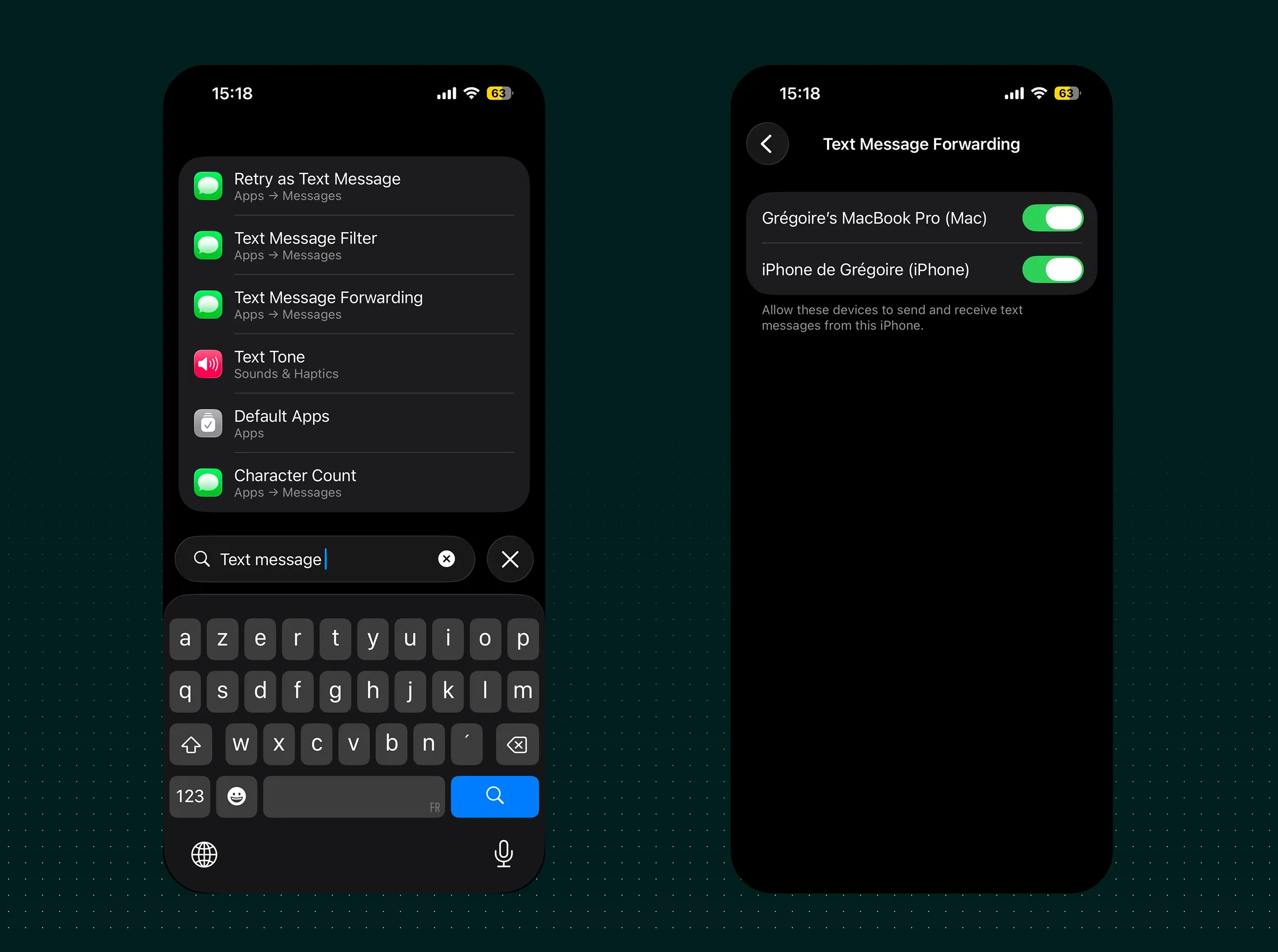
Heads up: If "Text Message Forwarding" doesn't appear, make sure iMessage is turned on and every device uses the same Apple ID. This is the single most common reason the option is missing.
How to forward texts on Android
Android is messier here, because "Android" is dozens of manufacturers. Stock Android (Google Pixel) has no built-in setting to auto-forward every SMS to another number or to email. What it does offer is Messages for web, which mirrors your texts to a browser tab, similar in spirit to Apple's approach.
In which situations can you use this method?
Use Messages for web when:
- You want to type texts from your computer keyboard.
- You only need mirroring, not true forwarding to a separate recipient.
- You keep your phone nearby and on Wi-Fi (the browser relies on the phone staying connected).
If you need real forwarding (every incoming text pushed to email or a second phone, even when your phone is off), stock Android can't do it alone. Skip to the third-party apps section.
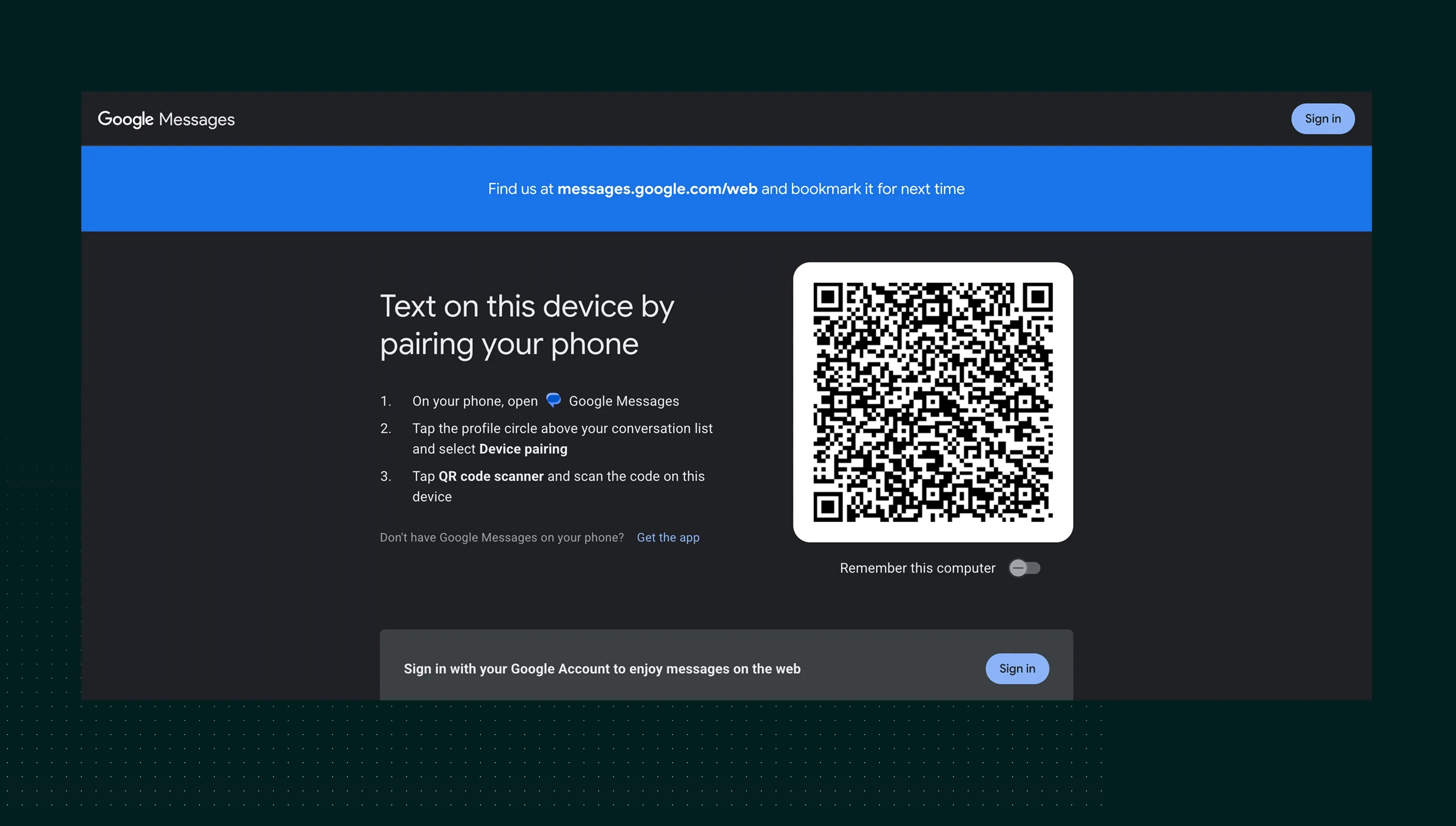
How to turn on text mirroring on Android
- Open the Google Messages app on your phone.
- Tap your profile icon or the menu, then Device pairing.
- On your computer, go to messages.google.com/web.
- Scan the QR code with your phone.
Your conversations now appear in the browser. Again, this is mirroring, not forwarding to a different person.
How to forward texts on Samsung
Samsung phones run Android but add their own layer, so they get a slightly better deal. Through Samsung's ecosystem you can use "Call & text on other devices" to push texts to a Galaxy tablet or another Samsung device on the same Samsung account, plus Link to Windows to mirror messages to a PC.
In which situations can you use this method?
Use it when:
- You're inside the Samsung/Galaxy ecosystem (phone plus tablet, or phone plus Windows PC).
- You want texts mirrored across your own gear, not forwarded to someone else.
- Both devices share the same Samsung account and Wi-Fi network.
As with iPhone and stock Android, this won't forward text messages to another phone that belongs to a colleague or family member. The native ceiling is the same across all three platforms.
How to turn on text sharing on Samsung
- Open Settings > Connected devices > Call & text on other devices (path varies slightly by model and One UI version).
- Toggle it on and sign in with your Samsung account.
- Select the devices you want to receive texts.
For a Windows PC, install Phone Link on the computer and Link to Windows on the phone, then pair them. [SCREENSHOT: Samsung "Call & text on other devices" toggle]
Quick comparison of native options
| Platform | What it really does | Forwards to another person? | Cost |
|---|---|---|---|
| iPhone | Mirrors SMS to your Mac/iPad | No | Free |
| Android | Mirrors SMS to a browser | No | Free |
| Samsung | Mirrors SMS to Galaxy devices/PC | No | Free |
Third-party options
If the native options don't work for you, and for anything beyond mirroring to your own devices they won't, you have two paths: dedicated forwarding apps or a VoIP platform. The apps are cheaper and great for solo use. VoIP is the move once more than one person is involved.
3rd party forwarding apps
These are purpose-built to take an incoming SMS and push it somewhere else: an email inbox, another phone number, Slack, Telegram, or a webhook. This is how you genuinely forward text messages to another phone, and how you forward text messages to email automatically.
When to use 3rd party forwarding apps
Reach for one of these apps when you want to:
- Forward text messages to email so they're searchable and backed up (great for keeping records of verification messages or appointment confirmations).
- Auto-forward every text to a second phone you carry.
- Route texts into a chat tool like Slack, Teams, or Telegram.
- Apply rules, for example "only forward texts from this sender" or "only between 9am and 6pm."
iPhone app
- autoforward: Forward SMS — 4.6 stars across 11 ratings (a small sample, so weigh that). Forwards via SMS or email only, with a 5-texts-per-minute cap to prevent abuse. 100% free. A solid no-cost pick if your needs are simple and you mainly want how to forward text messages to email handled.
- SMS Forwarder: Forward SMS — 4.4 stars across 363 ratings. Forwards to email, Teams, another phone, Slack, and WhatsApp, and lets you build a forwarding schedule. Pricing is $49.99 per year if you subscribe through their website. The most flexible iPhone option I found, though the price is steep for personal use.
Android apps
- SMS Forwarder (frzinapps) — 4.3 stars across a hefty 15,300 reviews. Forwards to email, SMS, Telegram, and webhooks, with conditional forwarding based on keyword, sender, or schedule. Free with ads, or paid plans to remove them. The large review count makes this the safest bet of the bunch.
- Forward SMS (development.forwardsms) — 4.2 stars across 4,320 reviews. Forwards to email, SMS, Slack, webhook, Teams, and Telegram. Free with daily limits. A capable backup choice if the first app doesn't click for you.
| App | Platform | Forwards to | Rating | Price |
|---|---|---|---|---|
| SMS Forwarder | iPhone | Email, Teams, phone, Slack, WhatsApp | 4.4 (363) | $49.99/yr |
| autoforward | iPhone | SMS or email | 4.6 (11) | Free |
| SMS Forwarder (frzinapps) | Android | Email, SMS, Telegram, webhook | 4.3 (15.3K) | Free / paid |
| Forward SMS | Android | Email, SMS, Slack, webhook, Teams, Telegram | 4.2 (4.32K) | Free w/ limits |
VoIP apps
VoIP (Voice over IP) platforms are a different species.
Instead of forwarding texts off your personal SIM, they give you a real business phone number that lives in the cloud. Every text to that number can land in a shared inbox, sync to your CRM, and route anywhere you want.
When to use VoIP apps
Use VoIP when texting is part of how your business runs, not just a personal convenience. The signs you've outgrown apps:
- More than one person needs to see and reply to the same texts.
- You want texts tied to customer records in your CRM, not lost in someone's personal phone.
- You need reliability and an audit trail.
Important limitation: VoIP numbers generally should not be used to receive one-time passwords (OTP) and 2FA codes. Many services block SMS codes to VoIP numbers, so keep your bank logins on your real carrier line. VoIP shines for customer conversations, not verification codes.
Recommended option: Allo
When the goal shifts from "copy my texts somewhere" to "run a business on text," Allo is what I'd recommend (yes, I'm a bit biased).
It's built for teams from the ground up:
- Syncs with your CRM, so every conversation is attached to the right contact automatically.
- Team inbox that lets multiple people see, claim, and reply to texts without stepping on each other.
- Strong AI features that summarize threads and speed up replies.
- Zapier integration plus an API, which means you can forward your texts to virtually any destination you can think of, no consumer app required.
That last point is the quiet superpower. Where a forwarding app sends texts to one place, Allo's API and Zapier connection let you send texts to any tool in your stack, which is forwarding without limits.
Carrier and eSIM options (and why they're usually not the answer)
Let's clear this up, because it's a common point of confusion.
A true eSIM does not forward text messages. It's just a SIM card built into your phone instead of a plastic chip. What people sometimes mean is dual-SIM, having two numbers on one device. That helps you receive on two lines, but it's the same physical phone, so it isn't forwarding to a second device or person at all.
What can come close is carrier number-sync, a paid feature from some operators:
- T-Mobile DIGITS and AT&T NumberSync let one number ring and text across several of your own devices (watch, tablet, second phone).
- Some carriers offer SMS forwarding as an add-on, though availability is patchy and changes often.
My take after testing: carrier features are worth a look only if you're already deep in one carrier's ecosystem and want everything on one bill. They're locked to your devices and your account, just like the native phone settings, so they hit the same ceiling. For forwarding to another person, a different platform, or your CRM, an app or VoIP is the cleaner path.
Conclusion
There's no single "best" way to forward text messages, only the best fit for what you're trying to do. Here's how I'd choose:
- Just want your texts on your own laptop or tablet? Use the free native settings on your iPhone, Android, or Samsung. Thirty seconds, zero cost, no downloads.
- Need to forward text messages to email or a second phone, for yourself? Pick a well-reviewed third-party app. autoforward is the easy free start on iPhone; SMS Forwarder is the safe choice on Android.
- Want power-user rules, schedules, or chat-tool routing? A paid app like SMS Forwarder earns its keep.
- Running a business on text, with a team and a CRM? Use a VoIP platform. Allo is my pick for the shared inbox, CRM sync, AI features, and the Zapier/API combo that forwards texts anywhere.
- Eyeing eSIM or carrier sync? Only if you're already locked into one carrier and only need your own devices in sync. It won't forward to anyone else.
FAQ
Can text messages be synced to another phone?
Yes, but it depends on the ecosystem. Apple, Samsung, and carrier features like T-Mobile DIGITS can sync texts across devices you own that share the same account. To sync to a phone that isn't yours, or across different brands, you'll need a third-party forwarding app or a VoIP platform instead.
Can I forward text messages to another phone?
Yes. Native phone settings won't do it (they only mirror to your own devices), but third-party apps like SMS Forwarder and autoforward are built exactly for this, and can push every incoming SMS to a second number automatically. For business use, a VoIP platform like Allo routes texts to wherever your team needs them.
How do I forward a message on my phone to another person?
For a one-off message, the simplest route is to copy it and paste it into a new text. On iPhone, press and hold the message bubble, tap More, select it, then tap the forward (curved arrow) icon to send it on. On Android and Samsung, long-press the message and choose Forward. For automatic forwarding of every message, use a third-party app or a VoIP app.
How do you copy a text and send it to someone else on iPhone?
Open the conversation, press and hold the specific message bubble, and tap Copy for a quick copy, or tap More to select one or several messages. With More, a forward arrow appears in the bottom corner; tap it, then choose a recipient and send. This is the manual way to forward a text; for hands-off forwarding, set up an app or VoIP as described above.