
TL;DR
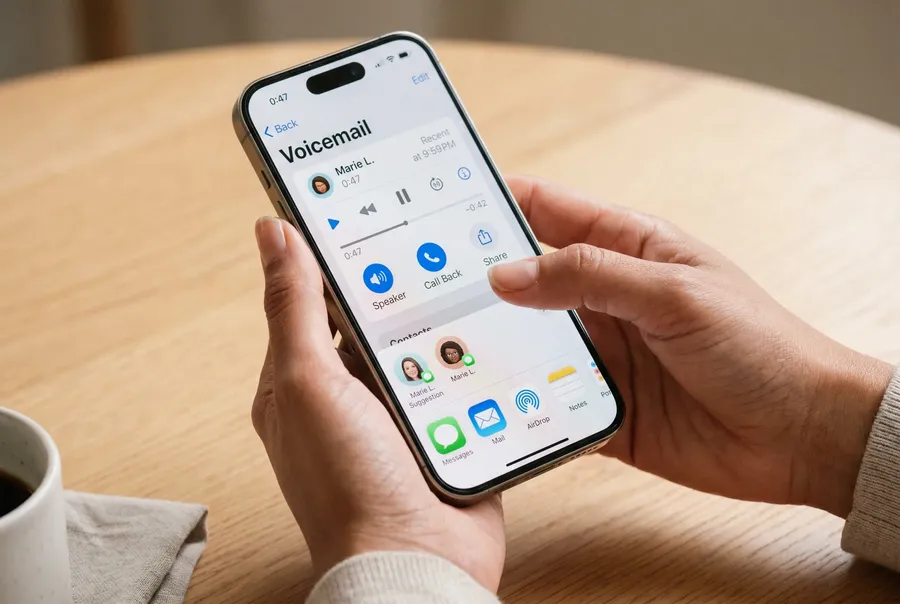
- You can forward a voicemail natively on both Android and iPhone, as audio or as transcribed text, in three or four taps.
- For teams, a shared VoIP inbox like Allo can make voicemail forwarding much easier.
Introduction
Voicemail is a relic from another time.
It was designed when phones were tied to copper wires and when leaving a thirty-second recording felt futuristic. Today, most professionals open their voicemail tab the way they open a fax machine: rarely, reluctantly, and usually with the goal of getting the information out of there as fast as possible.
The good news: forwarding a voicemail no longer means holding two phones up to each other in a quiet room. Modern phones, both Android and iPhone, give you several ways to share a voicemail with someone else, either as an audio file or as transcribed text.
And if you use a VoIP app like Allo, the experience gets even better: voicemails land in a shared team inbox, fully transcribed, ready to be read or forwarded in one click.
Here is how to do it on every platform.
How to forward a voicemail on Android
1. Native option (Visual Voicemail)
Most modern Android devices support Visual Voicemail through the stock Phone app or through carrier-specific apps like Verizon Visual Voicemail or T-Mobile Voicemail. The steps are nearly identical across manufacturers.
Forward as audio:
- Open the Phone app and tap Voicemail (usually the bottom-right tab).
- Tap the voicemail you want to share.
- Tap the three-dot menu or the Share icon.
- Choose Share, then pick the destination: Messages, Gmail, WhatsApp, Slack, Drive, or any other app that accepts audio attachments.
- The voicemail is sent as an .amr, .mp3, or .m4a file, depending on your carrier.
If you do not see a Share option, your carrier app may not support exporting. In that case, install Google Voice or your carrier's official Visual Voicemail app, both of which expose the audio file directly.
Forward as text:
Android does not transcribe voicemails natively across all devices, but Google Voice does, and so does Pixel's built-in transcription on supported models.
- Open the voicemail in Google Voice (or the Pixel Phone app).
- Tap the voicemail to expand the transcript.
- Long-press the text, copy it, and paste it into Messages, email, or Slack.
That gives you a clean, searchable text version of the message, without forcing the recipient to actually listen to it.
2. VoIP option: forward voicemails through a third-party app
If your team uses a VoIP phone system, you can skip the native voicemail experience entirely.
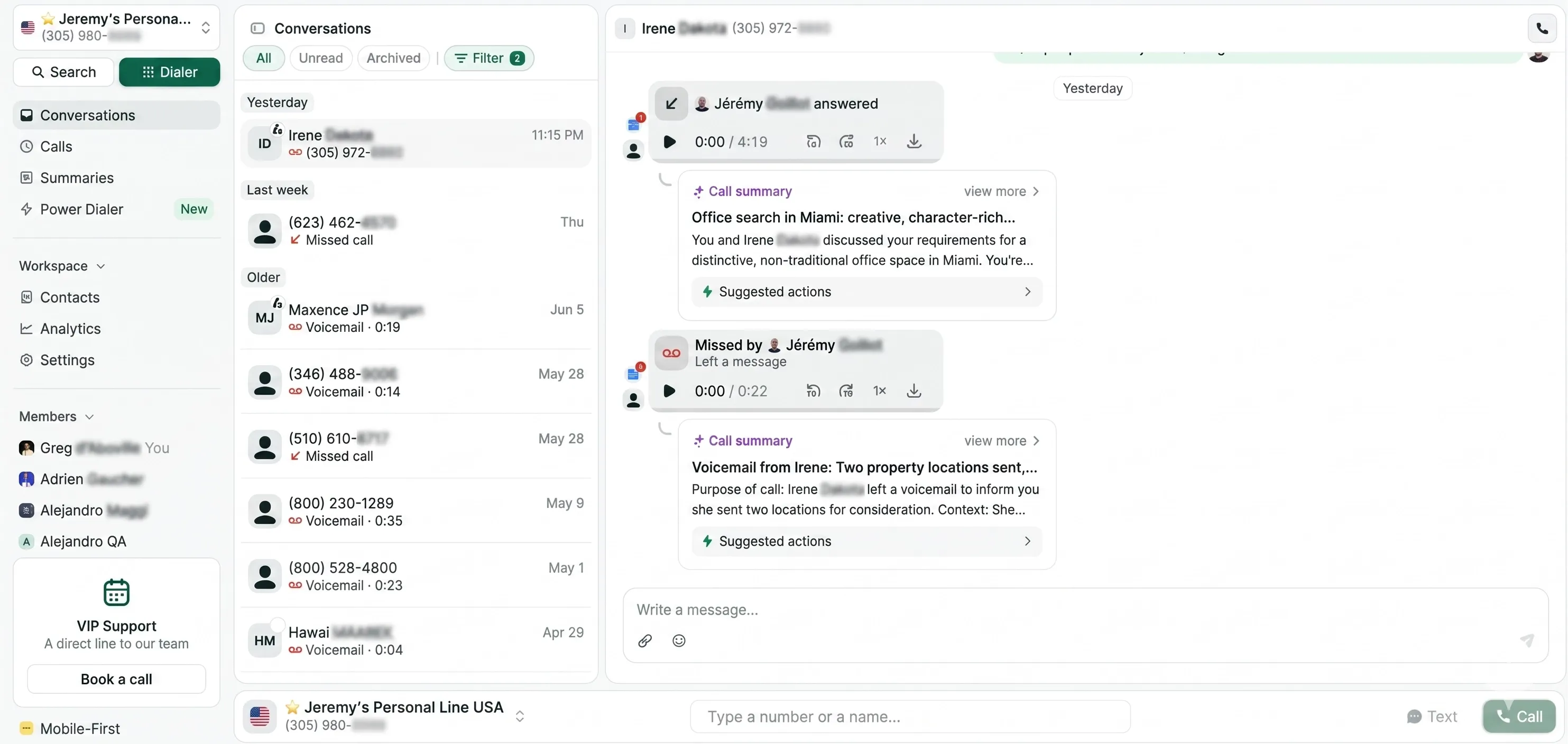
Allo works on Android (and as a web app, and on iOS, and on desktop), so any voicemail left on your Allo number is available to your whole team the moment it lands.
Here is what changes:
- Every voicemail is automatically transcribed, so anyone authorized can read it in seconds without listening.
- Voicemails arrive in a shared team inbox, not stuck on one person's phone.
- Any authorized teammate can listen, read, reply by SMS, or call back directly from the same screen.
- Forwarding becomes a single click: share the conversation link, or copy the transcript.
This matters most for sales teams and support teams, where a missed call from a prospect should never sit idle in someone's personal voicemail. Allo turns voicemail from a one-person bottleneck into a team-readable thread.
Yes, Allo works fully on Android. Install the app from the Play Store, sign in, and your voicemails are immediately available across the whole team.
How to forward a voicemail on iPhone
1. Native option (Visual Voicemail)
iPhones have supported Visual Voicemail since the original iPhone in 2007, and the flow has barely changed. It is one of the cleanest native experiences for forwarding a voicemail.
Forward as audio:
- Open the Phone app and tap Voicemail (bottom-right tab).
- Tap the voicemail you want to forward.
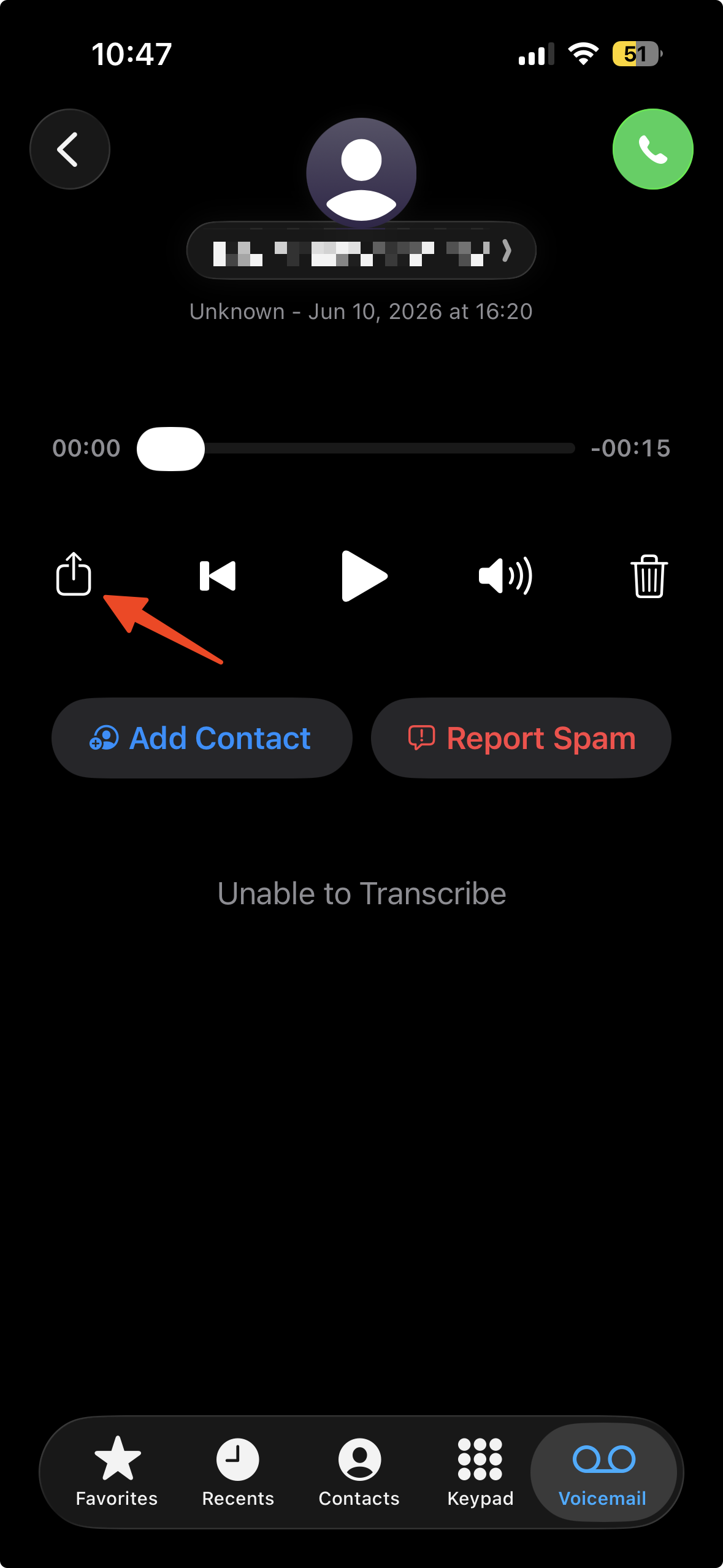
- Tap the Share button (the square with the upward arrow).
- Pick the destination: Messages, Mail, AirDrop, WhatsApp, Slack, Notes, or any app that accepts audio.
- The voicemail is shared as an .m4a file, which plays back instantly on virtually any device.
iPhone uniquely keeps voicemails on the device itself, so you can forward them even when offline.
Forward as text:
Apple introduced live voicemail transcription years ago, and it now works in most languages on supported devices.
- Open the voicemail in the Phone app.
- Tap to expand, and you will see the transcript above the audio scrubber.
- Long-press the transcript text, copy it, and paste it wherever you need: Messages, Mail, Slack, Notion.
Transcription quality has improved enormously since iOS 17, especially in English, French, and Spanish. For complex accents or noisy recordings, you may still want to forward the audio file as a backup.
2. VoIP option: forward voicemails through a third-party app
You can also use a third-party VoIP app to make voicemail sharing easier across team members.
Allo runs natively on iOS and gives every voicemail a shared-inbox treatment:
- Voicemails are automatically transcribed and stored in the shared team inbox.
- Authorized teammates can read the transcript without listening, which is faster and more discreet during meetings.
- One click to share, reply by SMS, call back, or create a CRM note.
- No more "let me forward you this voicemail, hold on" moments.
Yes, Allo works fully on iPhone. Download from the App Store, sign in, and your voicemails are available everywhere your team works.
FAQ
Can you forward a voicemail?
Yes. Every modern smartphone lets you forward a voicemail, either as an audio file or as transcribed text. On iPhone, the native Phone app has a built-in Share button on every voicemail. On Android, Visual Voicemail (through the stock Phone app, Google Voice, or your carrier's app) exposes the same option. If forwarding voicemails is something you do often, especially across a team, it is usually worth switching to a VoIP app or phone system like Allo, where voicemails live in a shared inbox that any authorized teammate can access.
How to forward a voicemail?
The flow is almost the same on Android and iOS: Open the Phone app and go to the Voicemail tab. Tap the voicemail you want to share. Tap the Share icon (the square with the upward arrow on iPhone, the three-dot menu or share icon on Android). Choose a destination: Messages, email, WhatsApp, Slack, AirDrop, Drive, or any app that accepts audio attachments. The voicemail is sent as a standard audio file (.m4a on iPhone, .amr or .mp3 on Android). If you would rather forward the text version, tap to expand the transcript inside the voicemail, then copy and paste it. For teams, a VoIP phone system like Allo skips this whole flow: every voicemail is already transcribed and one click away from being shared.
How to forward a voicemail to email?
To forward a voicemail directly to an email address: Open the Voicemail tab in your Phone app. Select the voicemail you want to forward. Tap Share, then pick your email app (Mail on iPhone, Gmail or Outlook on Android). The audio file is automatically attached. Add the recipient, write a quick note, and send. For longer voicemails or international transfers, the file size can occasionally bump against email attachment limits (typically 25 MB on Gmail). If that happens, upload the file to Drive or Dropbox first and share the link instead. Teams that need to email voicemails regularly often move to a VoIP setup like Allo, where every voicemail is transcribed and can be forwarded as text in a single click, no attachment needed.