Otter.ai has completely revolutionized the way we take notes, effortlessly transcribing Zoom meetings, Google Meets, and in-person interviews.
But if you’ve ever tried to use Otter to transcribe a standard phone call on your mobile device, you’ve likely run into a frustrating roadblock.
So, can Otter.ai record phone calls? The short answer is: not directly.
Because of strict privacy and security limitations imposed by both Apple (iOS) and Google (Android), third-party apps like Otter are blocked from accessing your phone's internal audio during an active carrier call.
Fortunately, you don't have to give up on getting your calls transcribed. In this article, we will break down exactly what you can expect from these limitations and walk you through three practical workarounds to get your phone calls recorded and transcribed in Otter.ai.
Workaround 1: Use Your Phone's Native Recording Option and Upload
If you want to stick to the tools you already have, the official recommendation from Otter’s support team is to rely on your smartphone’s native capabilities.
Both Android and iPhones offer a built-in native call recording feature in the phone app. You can record the conversation using this native tool, save the audio file, and then manually upload it to your Otter.ai account for transcription. This allows you to keep all of your transcripts organized in a single source of truth.
Pros:
- No additional costs: You are using built-in features and your existing Otter account, meaning there are no new subscriptions to worry about.
Cons:
- No automation: You cannot record automatically. You have to remember to hit record for every call.
- Manual effort required: Once the call is done, you have to manually locate the audio file on your device and upload it to Otter.ai, which adds friction to your workflow.
Workaround 2: Record Using Speaker Mode
If your phone doesn't have a native recording feature, or you just want a live transcription as you talk, the speakerphone method is the most straightforward hack.
Simply answer or place your call, put your phone on speaker mode, open the Otter app on your laptop/tablet sitting nearby, and tap the record button. Otter will listen through your device's microphone and transcribe exactly what it picks up from the phone's speaker.
Pros:
- Direct transcription: You get the live recording and transcript generated directly inside Otter—no uploading required.
- No additional costs: Just like the first method, this is entirely free to execute.
Cons:
- Lack of privacy: This method is far from ideal if you have other people around you, as your entire conversation will be broadcasted out loud.
- Poor audio experience: It’s often frustrating for your correspondents. Speaker mode tends to pick up and amplify background noises, making it harder for the other person to hear you clearly, and sometimes causing Otter to make transcription errors.
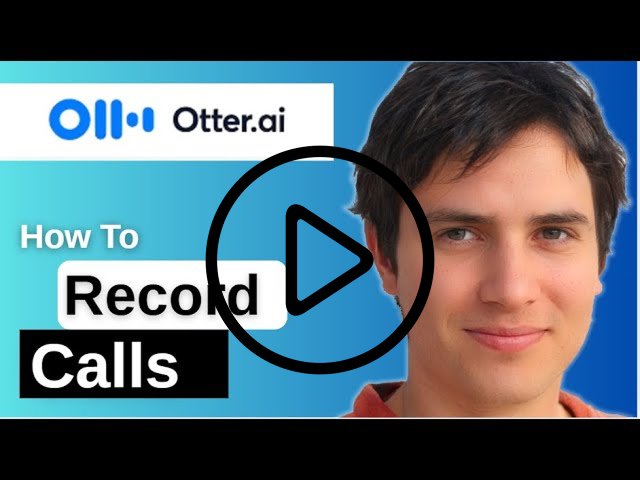
This Youtube video details the whole process, step by step.
Workaround 3: Record Using a VoIP Phone System
If you rely heavily on phone calls for business, the best workaround is to bypass your mobile operating system's limitations entirely by using a VoIP (Voice over Internet Protocol) phone system like Allo.
A VoIP system routes your calls through the internet via a third-party app rather than your standard cellular network. Because the call doesn't go through your phone's native OS dialer, it doesn't face the same recording blocks that Otter does.
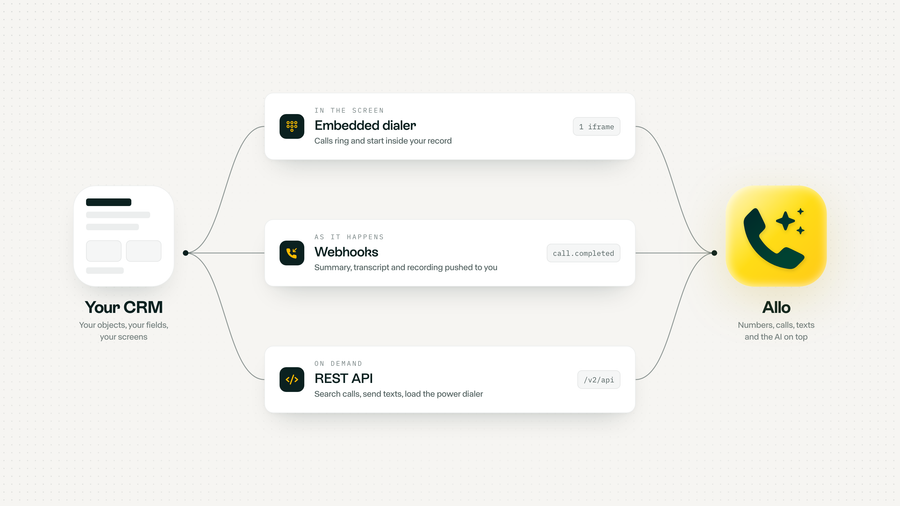
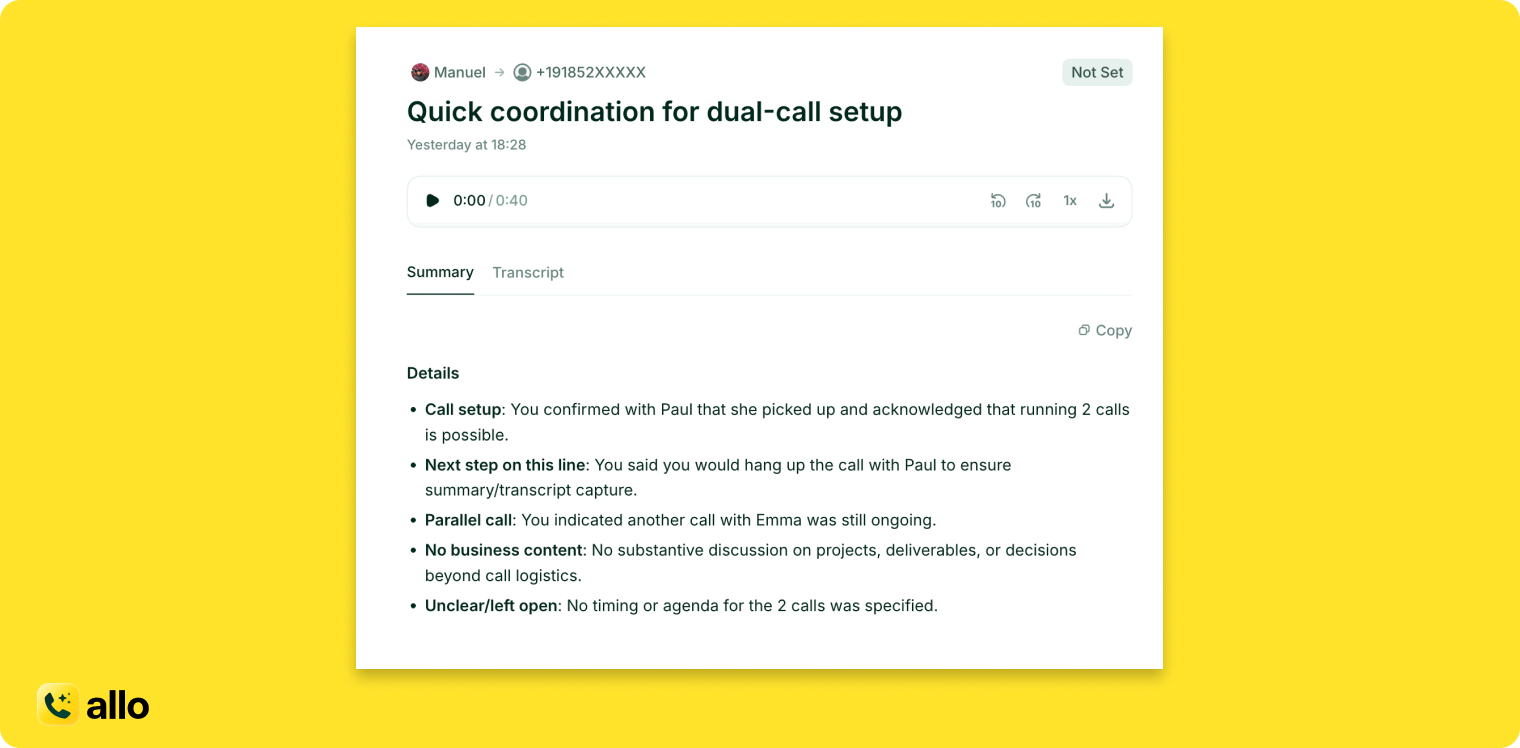
VoIP systems allow you to record your phone calls natively and automatically within the app. From there, if your phone system integrates with an automation tool like Zapier, you can set it up so that your call recordings are automatically synced and pushed straight into Otter.ai or directly to your CRM to consolidate all your recordings in the same place.
Pros:
- Full automation: Your calls can be recorded automatically without you having to remember to push a button.
- Powerful business features: By upgrading to a smart phone system like Allo, you get access to a suite of advanced features you won't find on a standard cell phone. This includes an AI receptionist to handle missed calls, deep CRM integrations that log your calls automatically, and SMS support.
Cons:
- Additional costs: VoIP phone systems are premium business tools that require a monthly subscription.
- Scattered data (if not synced): If you don’t set up an automation (like Zapier) to sync your tools, you will have to check for your recordings in both Otter and your VoIP/CRM dashboard.
Frequently Asked Questions About Call Recording in Otter
Can Otter.ai record phone calls?
Not directly. Due to strict privacy limitations imposed by mobile operating systems (iOS and Android), Otter cannot access your phone's internal audio during a live cellular call. However, you can easily bypass this by using workarounds like the speakerphone method, uploading native phone recordings, or using a VoIP phone system like Allo.
Can I use Otter to record phone calls on iPhone?
No, you cannot use Otter to record calls internally on an iPhone. Apple's iOS strictly blocks all third-party apps from recording audio while the phone dialer is in use. To record a call on an iPhone with Otter, you will need to put the call on speakerphone and record the external audio, or switch to a cloud-based VoIP calling app like Allo.
Can I use Otter to record phone calls on Android?
Modern Android operating systems restrict third-party apps from recording call audio directly for security reasons. To use Otter on Android, you must either use your phone's native call recording feature (if available in your region) and upload the file to Otter later, use the speakerphone method, or make your calls through a dedicated VoIP app like Allo.