How to set up a business VoIP system
Setting up a business VoIP system takes 8 simple steps. Compare Allo, Ooma, Vonage, and Nextiva on price, features, and setup time to find the right fit.


Article Overview
- Setting up a business VoIP system is faster and simpler than most people expect. The setup process requires eight easy steps.
- The right VoIP system should scale with your business. You can compare four providers (Allo, Ooma, Vonage, and Nextiva) across price, features, and setup time.
- Hidden costs and setup complexity are the two biggest traps to avoid. Buyers should watch for fees around onboarding, number porting, and customer support, and evaluate whether a platform requires IT resources or hardware to function.
- A reliable internet connection is the only real technical requirement. VoIP calls need as little as 0.5 Mbps of download speed, which makes it extremely accessible to most SMBs.
QoS and TLS and SRTP, oh my!
If you’ve been looking into setting up a business phone system recently, you’ve likely run across these terms more times than you’d care to admit. The good news is, these terms mostly apply to legacy phone systems. In the new age of Voice Over Internet Protocol (VoIP), setting up a business phone system could take just 15 minutes or less.
This guide explains exactly how to set up a business VoIP system in eight simple steps. It also compares four of the top options on the market, plus offers a straightforward guide on how to choose the right one for your business.
What is a VoIP System for Business?
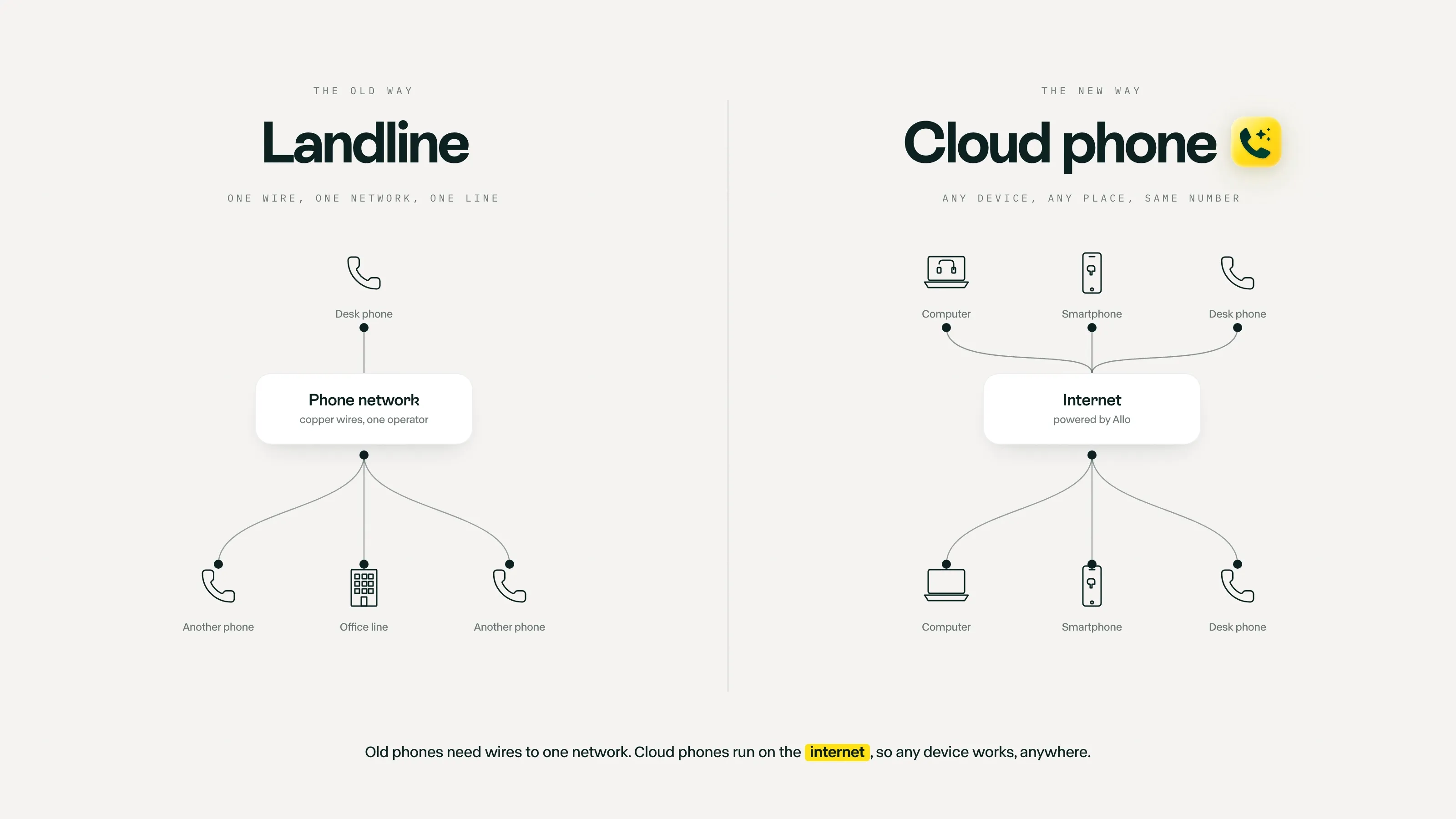
VoIP systems are a type of business phone software that lets you use your phone number over the internet. You don’t need physical phone lines or complicated server stacks. Plus, they’re far more cost-effective compared to traditional PBX or SIP trunks, which makes them a great fit for small businesses.
Here’s a simple breakdown of how a VoIP system works:
Set Up a Business VoIP System in 8 Steps
You don’t need much to set up a business VoIP system. Once you choose a provider and download the app, all you need is a WiFi connection and a few minutes to configure basic features.
Here’s how to set up a business VoIP system on your own, using Allo as an example.
1. Activate Your Software
The first step in setting up any VoIP system is creating your account. With Allo, you can do this in a few seconds by signing up for a free trial.
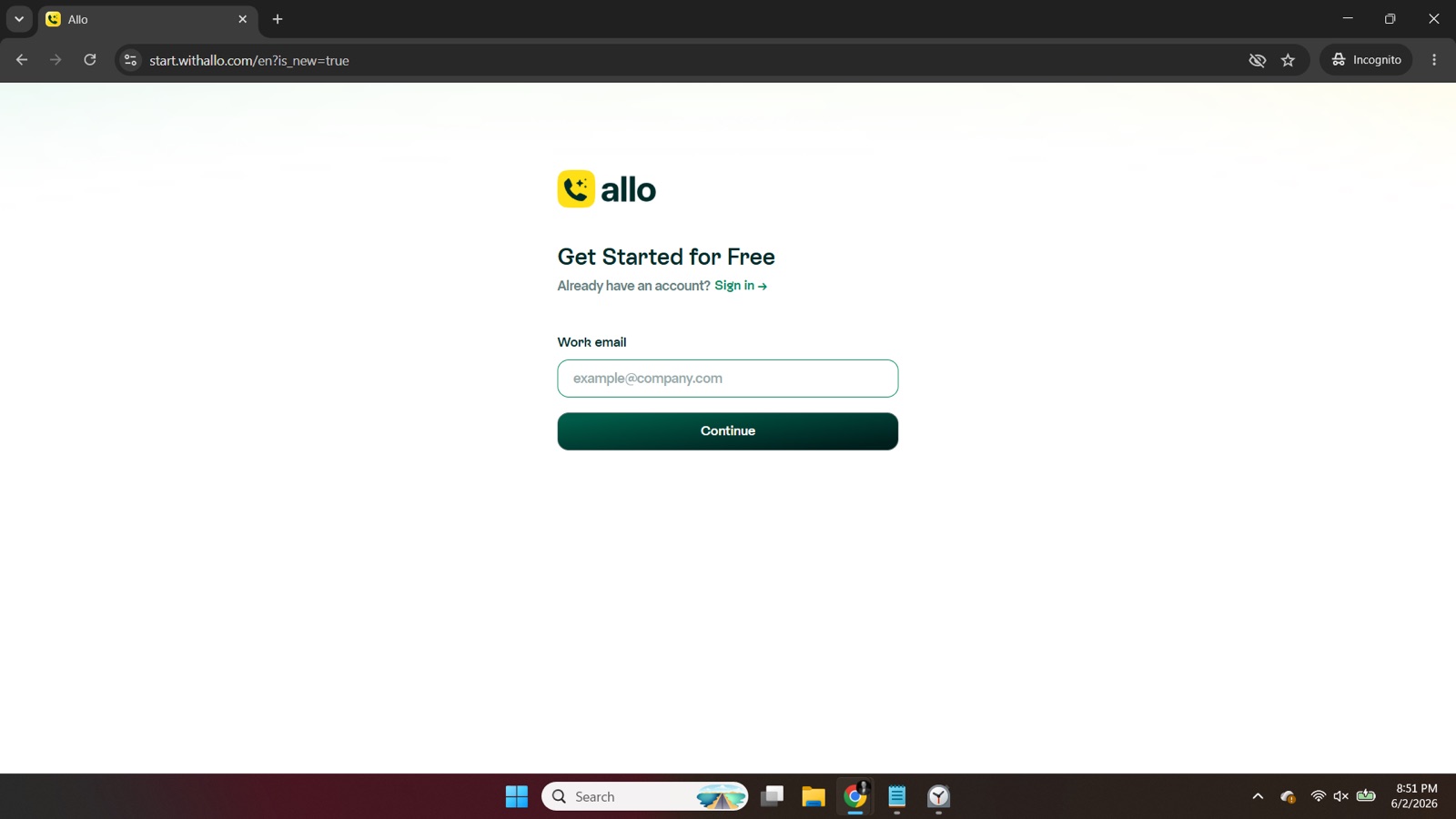
First, you’ll be prompted to enter your email. Make sure this is a professional email, like [email protected].
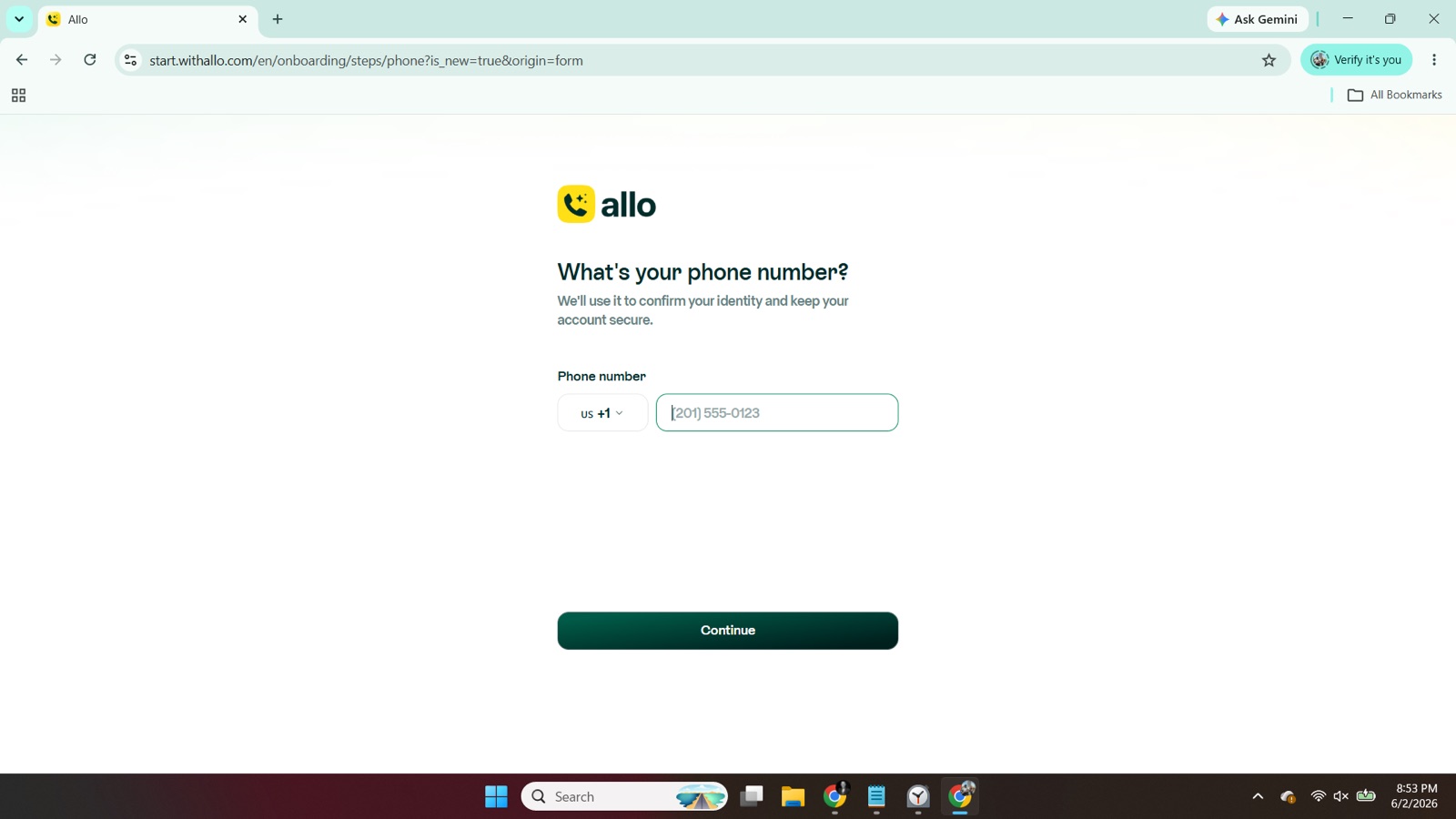
Next, you’ll need to provide an existing phone number to confirm your account. You’ll be able to select your number of choice later, or port in a number, if that’s something you want to do (we’ll get to this, don’t worry).
2. Gather the Hardware and Software You Need
If you’re using a traditional business VoIP system, you might need to purchase hardware to help your system run. This might include:
- Desk phones
- Handsets and headsets
- Ethernet cables
With a platform like Allo, however, you don’t need external hardware to get started. You can make calls and texts using the devices you already own. As long as you’re connected to the internet, you can use Allo as a softphone on your phone, laptop, or tablet.
You can download the Allo apps here.
3. Port Your Phone Number
Most VoIP systems let you select from local, vanity, or toll-free numbers. Allo supports all three so you can keep using your existing number.
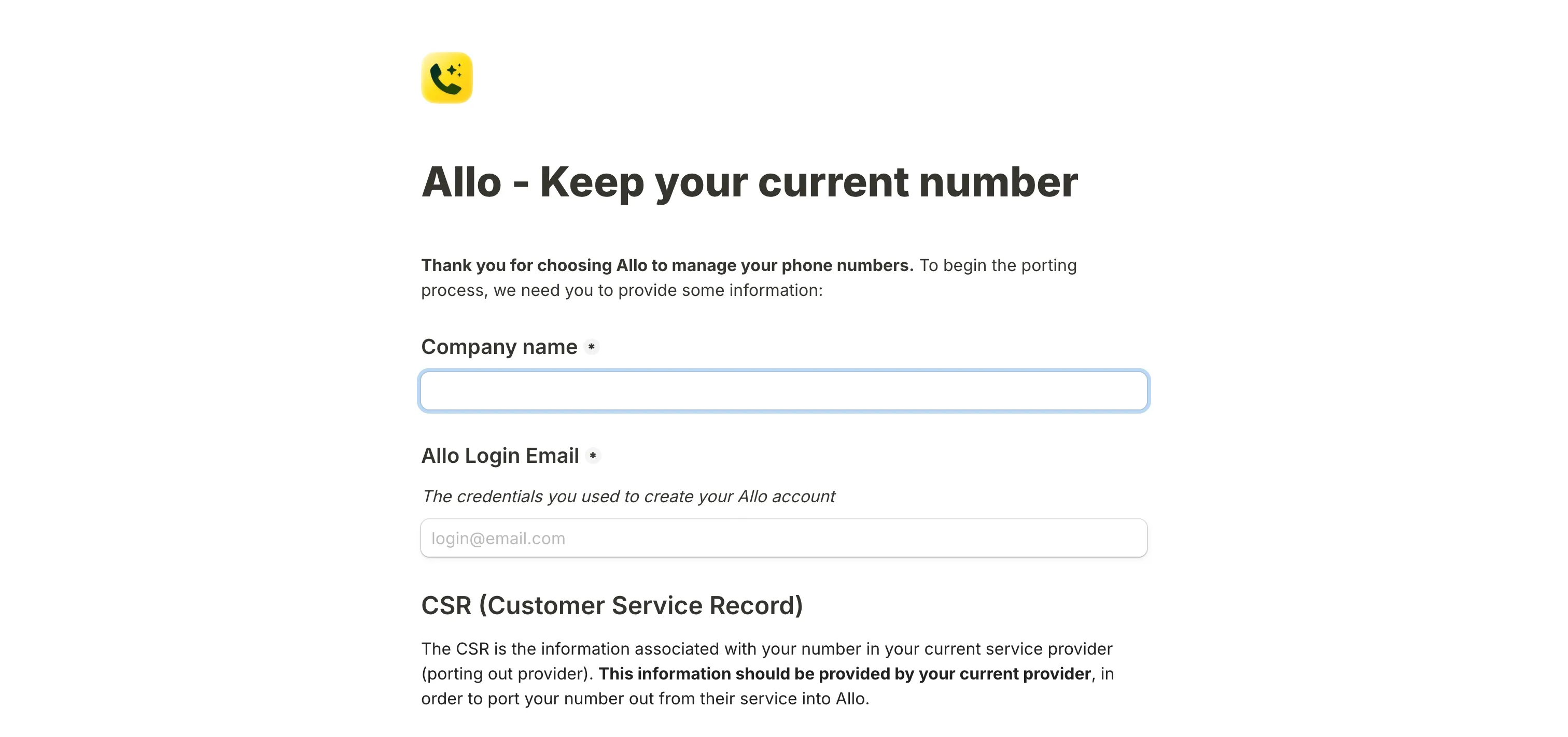
All you need to do is visit porting.withallo.com, then fill out the form, and await a response in five to seven days. Or, if you’re itching to establish a new number for your business, you can find one that suits your area code.
Once you’ve ported your number or purchased a new one, you can start making calls and texts with Allo from your phone, tablet, or computer.
4. Configure Basic Settings
Next, it’s time to configure basic settings that help you manage incoming calls more easily. This includes:
Business Hours
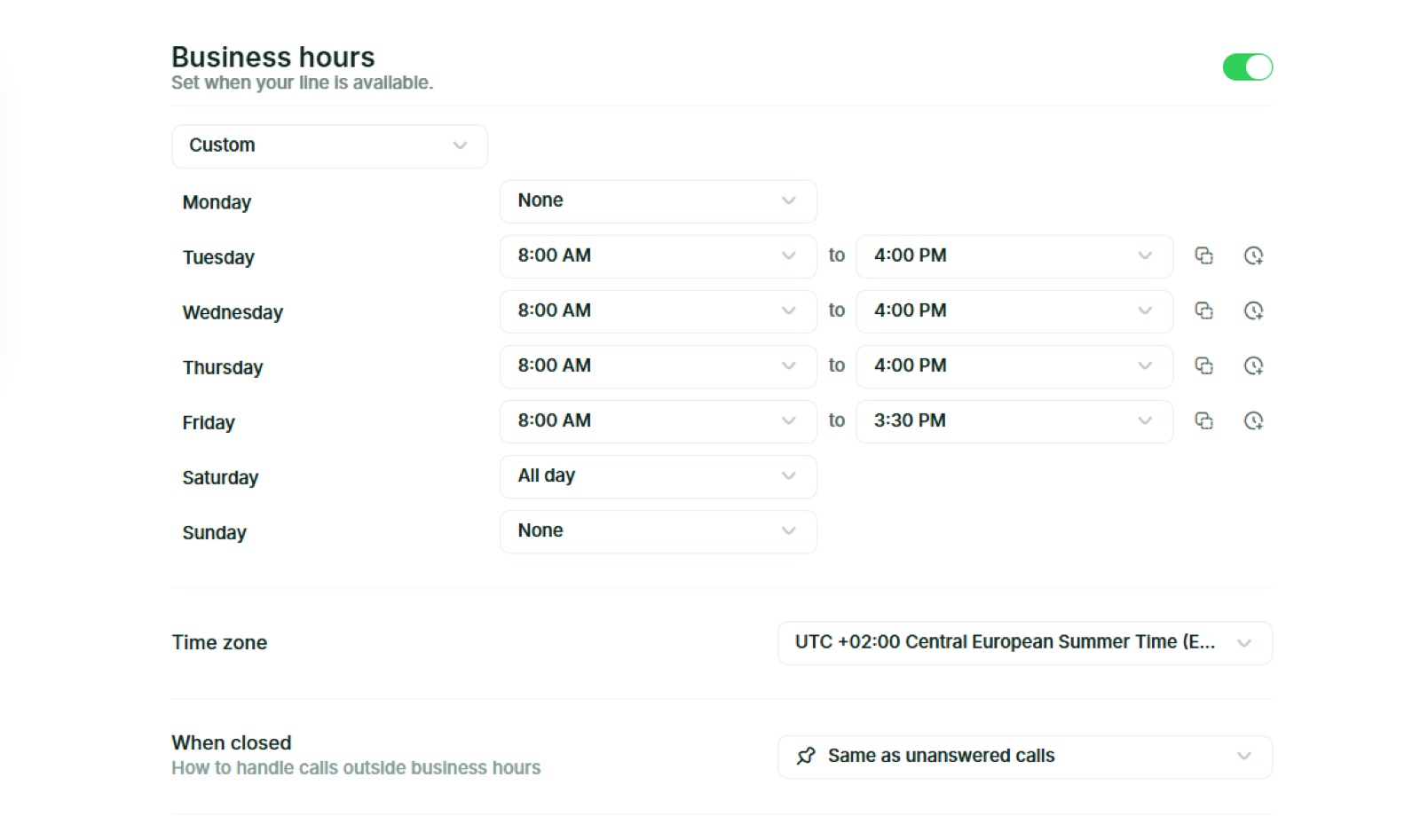
Use business hours to set clear expectations with customers.
In Allo, you can automatically set hours for every day of the week, or indicate ’all day’ or ’none’ if you want to receive calls ’round the clock (or not at all). When you’re happy with your settings, tap the green toggle button to enable them for that number. Keep in mind you can set different business hours for each number in your account.
Once you’ve set your business hours, you can set up other features in Allo that are dependent on them. For example:
- Automatically reply to missed calls, texts, and voicemails with auto-replies or missed call text back messages
- Set up an AI receptionist that automatically picks up the phone outside of business hours (more on this later)
Allo also gives options for how to handle calls outside of business hours. For example, you might send callers straight to voicemail, record a custom voicemail, or redirect (forward calls) to an external number.
Phone Menus
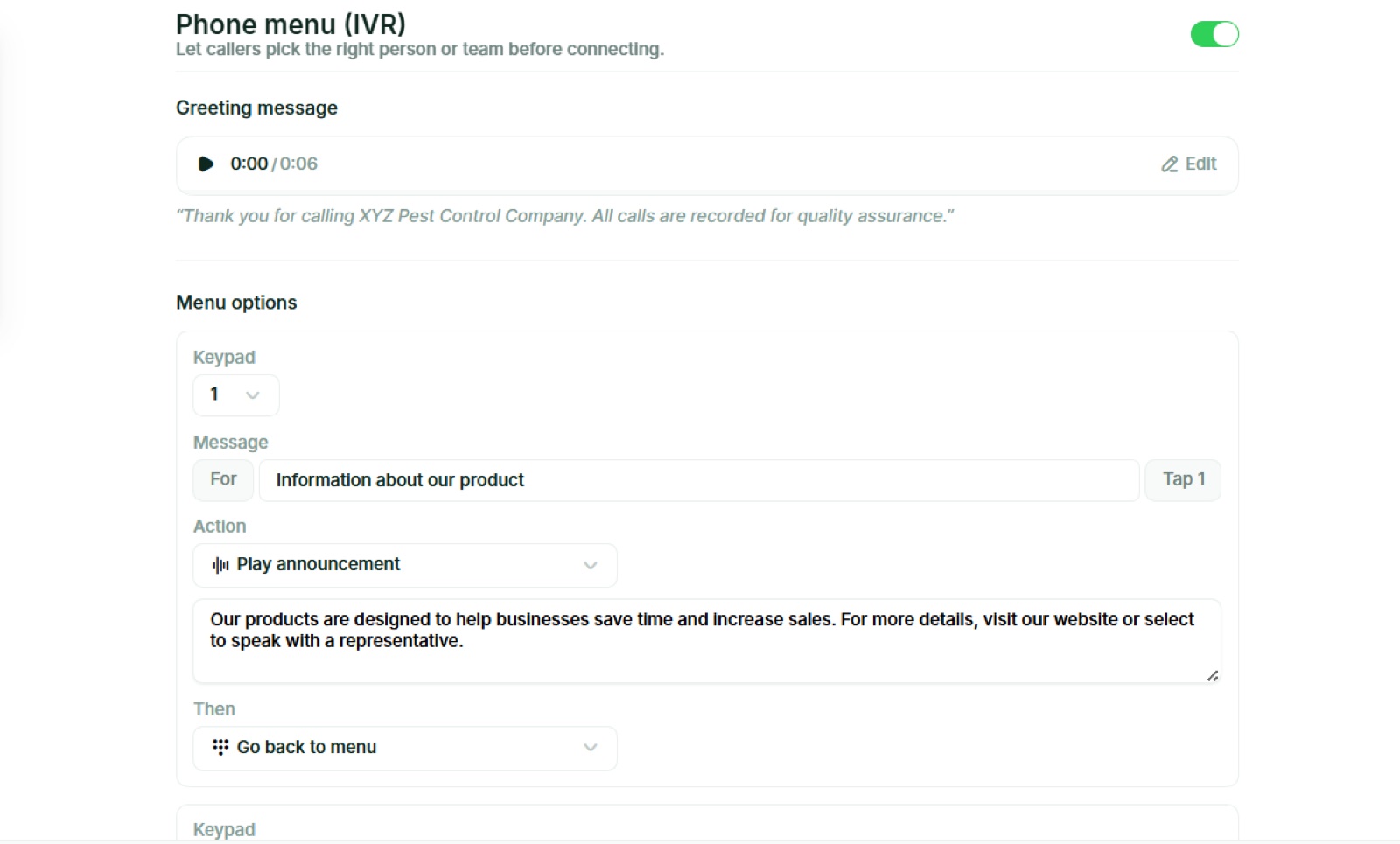
Most business VoIP systems offer phone menus so callers can select the right person or department for their inquiries. You may have heard them referred to as auto-attendants, virtual receptionists, or interactive voice response tools, or IVR. But no matter how you refer to it, it’s a system that greets callers and lets them choose whatever they need help with.
Your virtual receptionist can help you route calls with the following options:
- Play a greeting message, which you can customize using text-to-speech
- Play an announcement, which is essentially a pre-recorded audio file
- Ring a specific line, like ’Sales’ or ’Support’
- Forward the caller to another number
- Send the caller to voicemail
You can have up to nine menu options for callers to select from. You can also determine whether existing contacts can skip your phone menu, or if everyone who calls needs to proceed through your options.
Missed Call Handling
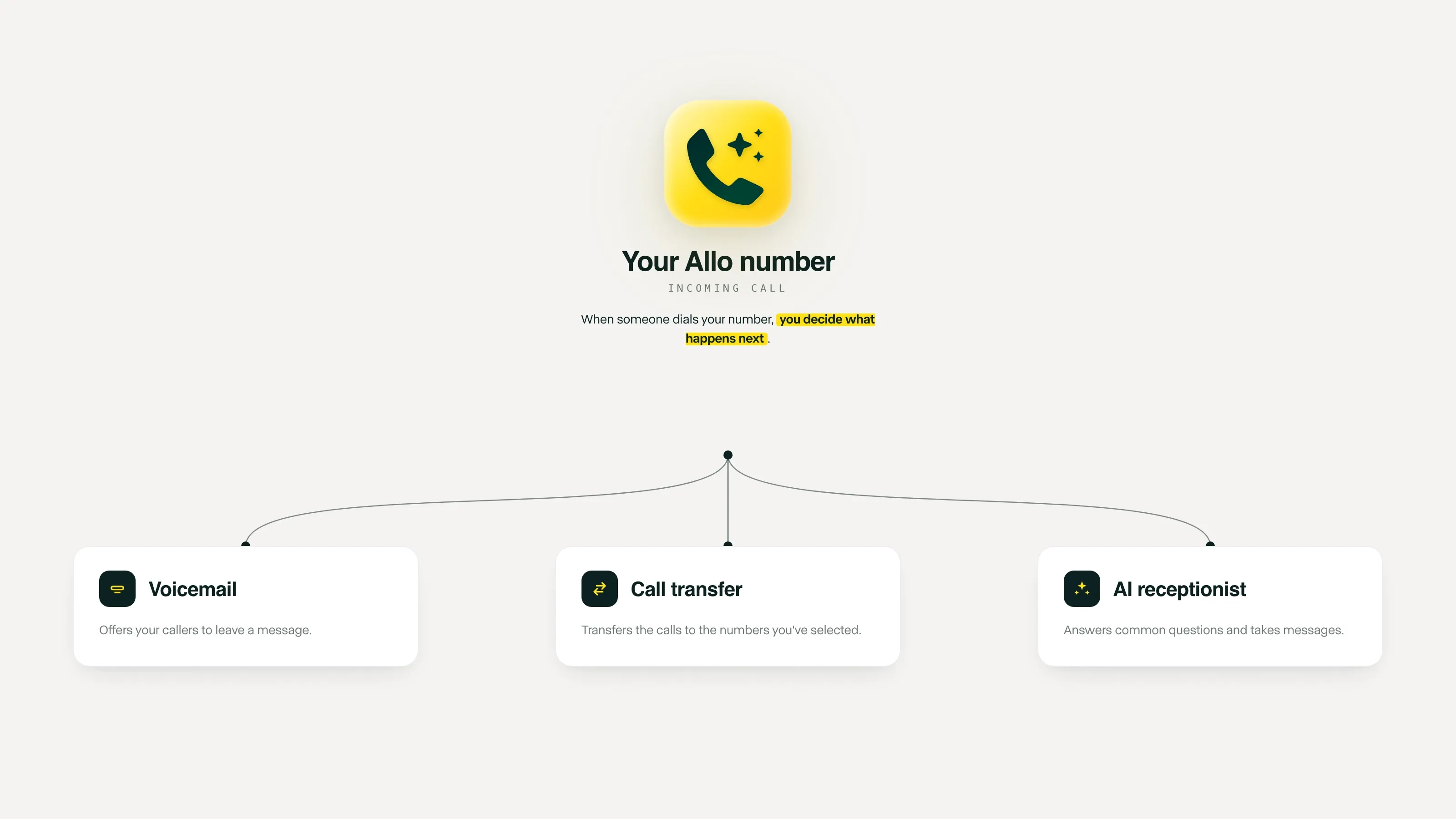
What happens when no one’s around to pick up the phone?
With a business VoIP system, you can automatically route callers to a few options, depending on what makes the most sense for your team. This might be:
- Voicemail: Let customers know they’ve reached the right number and someone will get back with them soon. With Allo, you can create a custom greeting both during and after business hours. This makes it easy to explain next steps to callers while also accommodating various situations (like a busy line versus an off day).
- Call Transfer: Transfer callers to a backup number if they’d otherwise get missed on your primary business number. For example, you might send after-hours calls to a personal number or another team member’s number who volunteered to be on-call. This ensures there’s always someone to pick up the phone in the event of an emergency. With Allo, you should also know you can transfer calls to both domestic and international numbers. This means when a caller tries to reach you outside of your local business hours, a teammate in a different timezone may still be available to pick up the phone. Not only does this cut down on missed opportunities, but it can help you make more revenue as well.
- AI Receptionist: An AI receptionist can pick up the phone 24/7 to answer callers in multiple languages, collect messages, and answer questions when possible. First, you can train your AI agent using links to your website, business files, and a specific prompt. Then, you can pick its tone of voice (professional, friendly, or enthusiastic) and answer type (standard, concise, or detailed). After adjusting your greeting and closing messages, your AI receptionist will have everything it needs. But you can always test its responses for yourself using the "Test receptionist" button directly in the Allo admin portal.
5. Add Your Users
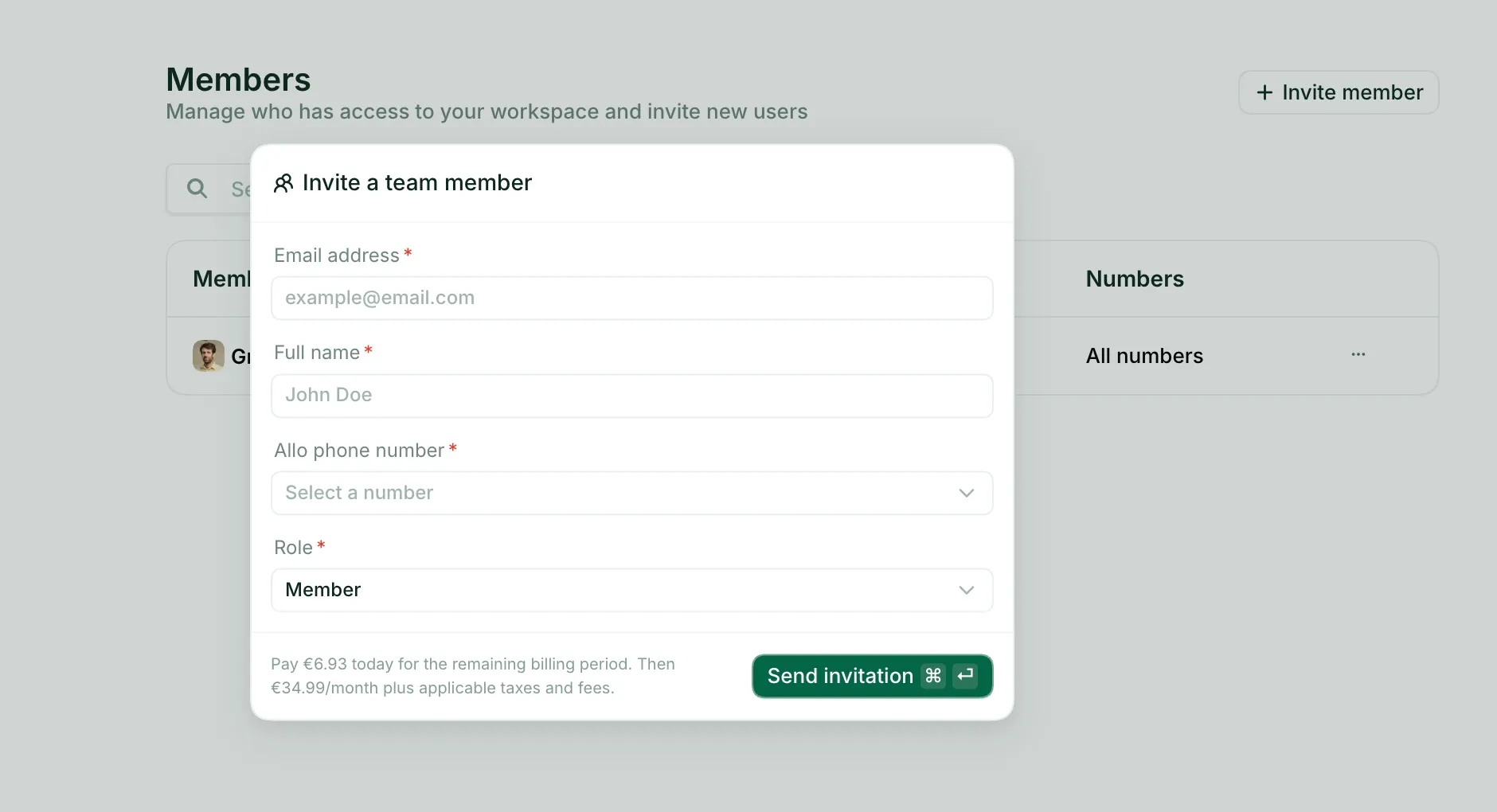
Unlike a traditional business phone system, adding more users to your VoIP platform is simple and straightforward. Take Allo, for instance: connecting your team takes five minutes or less, depending on how many people you want to add.
From your workspace, go to Settings > Workspace > Team and click Invite new users. Then, enter your team member’s email address and send the invitation. This allows them to download the Allo app, create an account using the invitation email, choose a phone number, and set up their profile.
Note that team management requires the Business plan and admin access in your Allo dashboard.
Once you’re set up, you can take a few different approaches to assigning numbers. You can:
- Give each team member their own number. This helps your business appear organized and professional to callers. It also makes it easier to set up their number in your phone menu. For example, you could say, “To reach John in Sales, press 2.”
- Assign multiple people to a shared main number. You can also set up simultaneous ring, which means every member of a number will be notified of incoming calls and texts. This increases a caller’s chances of speaking to a rep and avoiding voicemail, which might help prevent them from calling a competitor.
- Or both, depending on your needs
From the Settings > Workspace > Numbers tab, you can control exactly which team members have access to each number. It’s easy to rename numbers to keep things organized (like “Billing” or “Customer Success”). Plus, you can adjust your routing settings at any time.
There are two roles to choose from in Allo: admins, and team members. Admins have full access to team management, number assignment, billing, and all team call recordings. Team members can only access their own calls, recordings, and the numbers assigned to them.
Need to remove a user from your team? Once you revoke their membership in Allo, they’ll immediately lose access to any numbers on their dash. Plus, any numbers that solely belonged to them will become available for reassignment. You keep their full call history in your workspace, though.
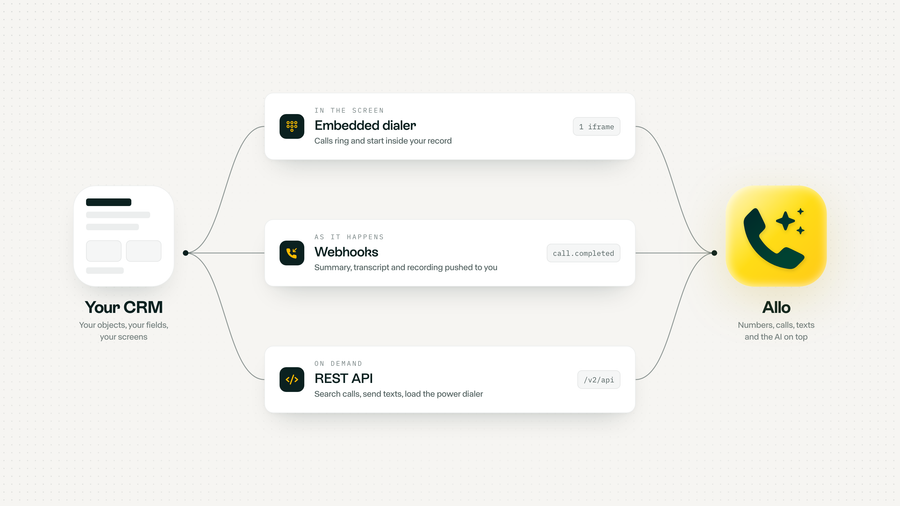
6. Set Up Third-Party Connections
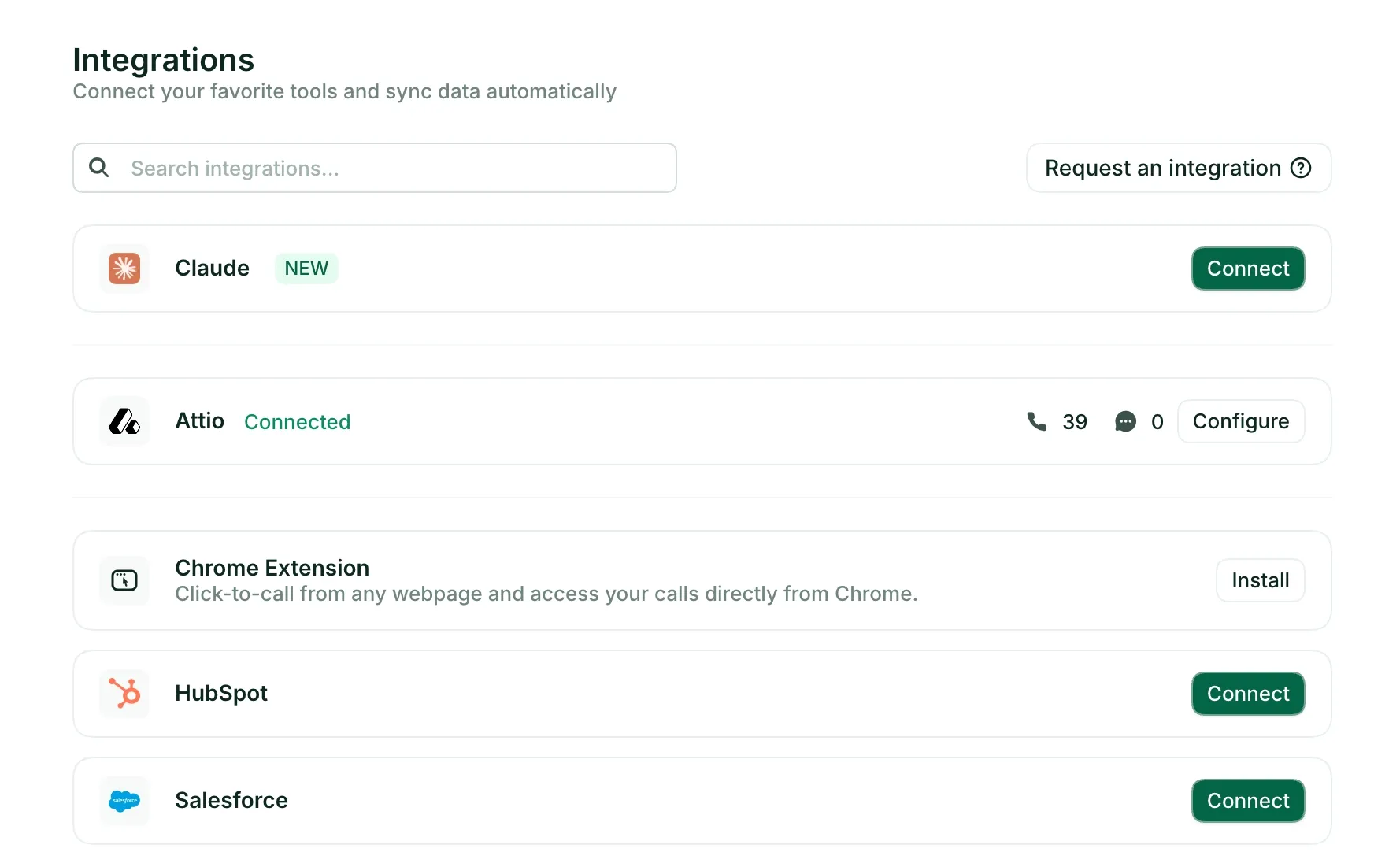
A business phone system can save your team a lot of time when it connects with tools you’re already using. That way, you’re not constantly jumping between apps to log calls, update contacts, or follow up with leads.
Allo integrates with a wide range of business tools, including:
- HubSpot: Access real-time lead details, deal stages, and activity history during calls, with everything logged automatically in both systems.
- Salesforce: Sync call logs and read through real-time customer insights without flipping between multiple tabs.
- Pipedrive: Log phone calls, AI summaries, and transcripts as activities on specific deals, then sync contacts every 10 minutes
- Apollo: Automatically sync every call log, text, and voicemail in Allo to Apollo
- Notion: Take notes on every call and call summary, transcripts, and next steps on a dedicated contact page
- Shopify: See real-time customer order details, including active orders and lifetime value, before you even
- QuickBooks: Look into a caller’s outstanding invoices, total spending, and payment history in real time
- Google Sheets: Automatically log call data into a shared spreadsheet, including summaries, contact details, and deal or call outcomes
- Zapier: Connect Allo to virtually any other tool in your tech stack, then trigger automations based on calls, voicemails, or messages
- Make: Build custom automations between Allo and other tools without writing code
Webhook: Send real-time call data to any platform of your choice the moment a call, voicemail, or message comes in
You can browse Allo’s full list of integrations at withallo.com/integrations.
7. Import Your Contacts
Want to make calls with a quick tap? Getting your contacts into Allo is one of the fastest ways to hit the ground running.
The easiest option is connecting your CRM. Once connected, Allo displays caller details, like name and company, during both incoming and outgoing calls. This ensures you always know who you’re talking to before picking up the phone.
8. Optimize Before- and After-Call Work
Now that your business phone system is up and running, it’s time to consider the ’bells and whistles’ for your team. This means adding operational improvements and features that can help your business grow over time.
With Allo, this could mean tapping into:
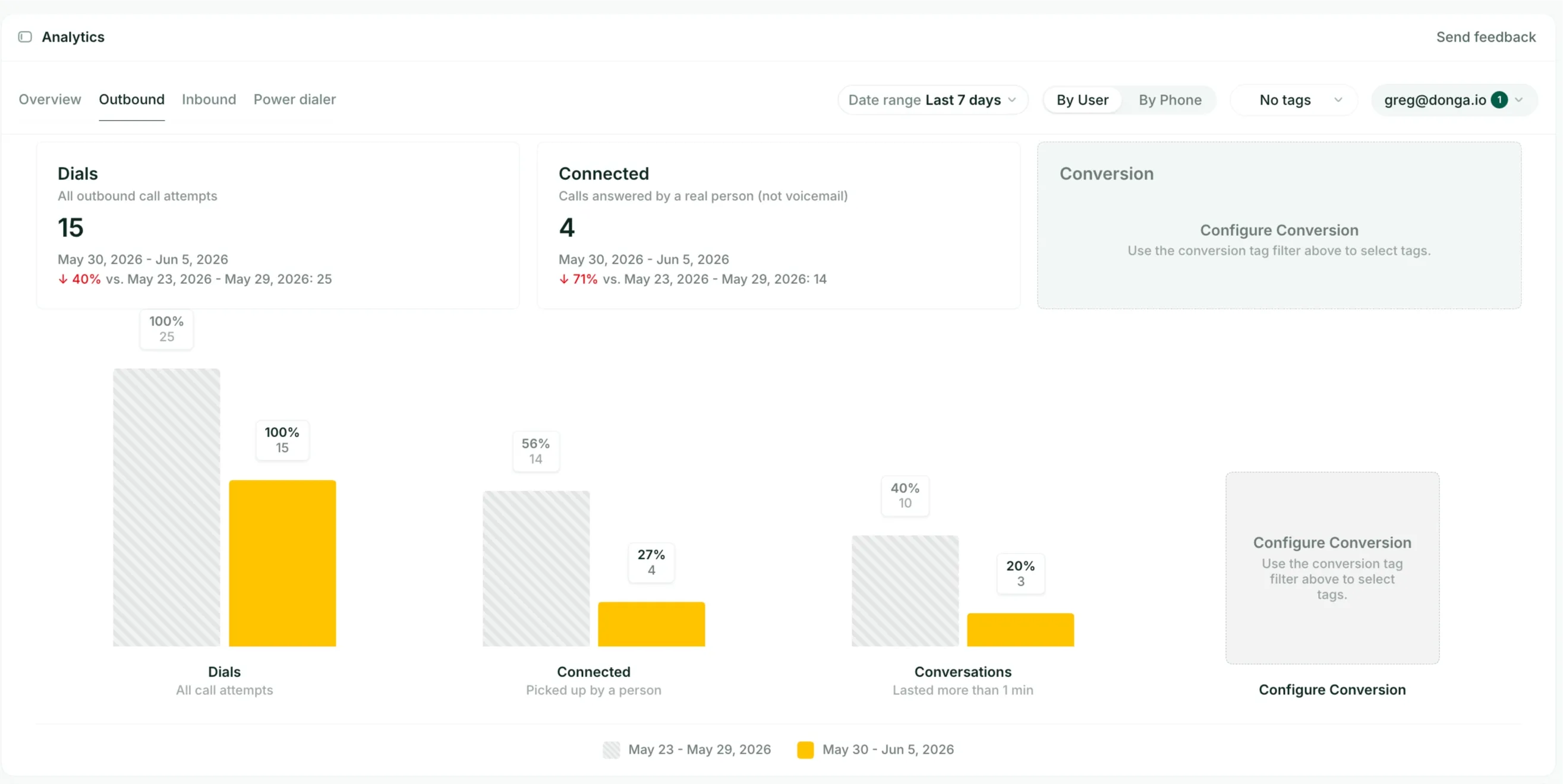
- Call reporting: Get a clearer picture of how your team is performing on the phone, without needing to manually pull data together. With call reports, you can track dials, connect rates, and conversion rates automatically. Our built-in AI can also use call transcripts to instantly decide whether a deal moved forward, which instantly syncs with your CRM. You can also check success rate heatmaps that show the best times and days to reach prospects. That way, your sales team can schedule outreach whenever people are most likely to pick up.
- AI call assistant: Let an AI assistant transcribe and summarize each conversation so no one on your team needs to take notes during sales calls. Once the call is over, your team can use an AI assistant to ask questions about past conversations. For example, they might ask, “What did this lead say about their timeline?” Then, they’ll get an instant answer without needing to dig through past recordings.
- Click-to-call: Select Allo as your default calling app to set up click-to-call on your desktop app. This can help you save time making outbound sales calls. It also makes it easier to run through lists of prospects quickly.
- Cascade ring: Instead of ringing your entire team at once, you can use cascade ring to notify team members one by one in a sequence you set. This gives priority team members a chance to answer the phone before the call moves to the next person in line. If no one picks up, Allo automatically sends callers to your AI receptionist to take a message or schedule a callback.
4 Top Business VoIP Systems to Consider for Your SMB
Now that you know how to set up a phone system, let’s take a closer look at picking a solid fit. Below are four of the best business VoIP systems on the market, plus their prices and features, so you can narrow down your search.
But first, a quick comparison:
| Platform | Starting Price | Key Features | Desk Phone Support | Setup Time |
|---|---|---|---|---|
| Allo | $18/user/mo | Calling and texting, call recording, iOS and Android apps, shared inboxes | No | 15 minutes |
| Ooma | $19.95/user/mo | Paging and intercom, desk phone support, text messaging (with upgrade) | Yes | 1 to 2 days |
| Vonage | $13.99/user/mo | API add-ons, desk phone support (with upgrade), self-service integration setup (with upgrade) | Yes | 2 months |
| Nextiva | $15/user/mo | Social media integrations, video calls, simple IVR (with two upgrades) | Yes | 3 days to 21 days |
Allo: Best for Small Business Setup
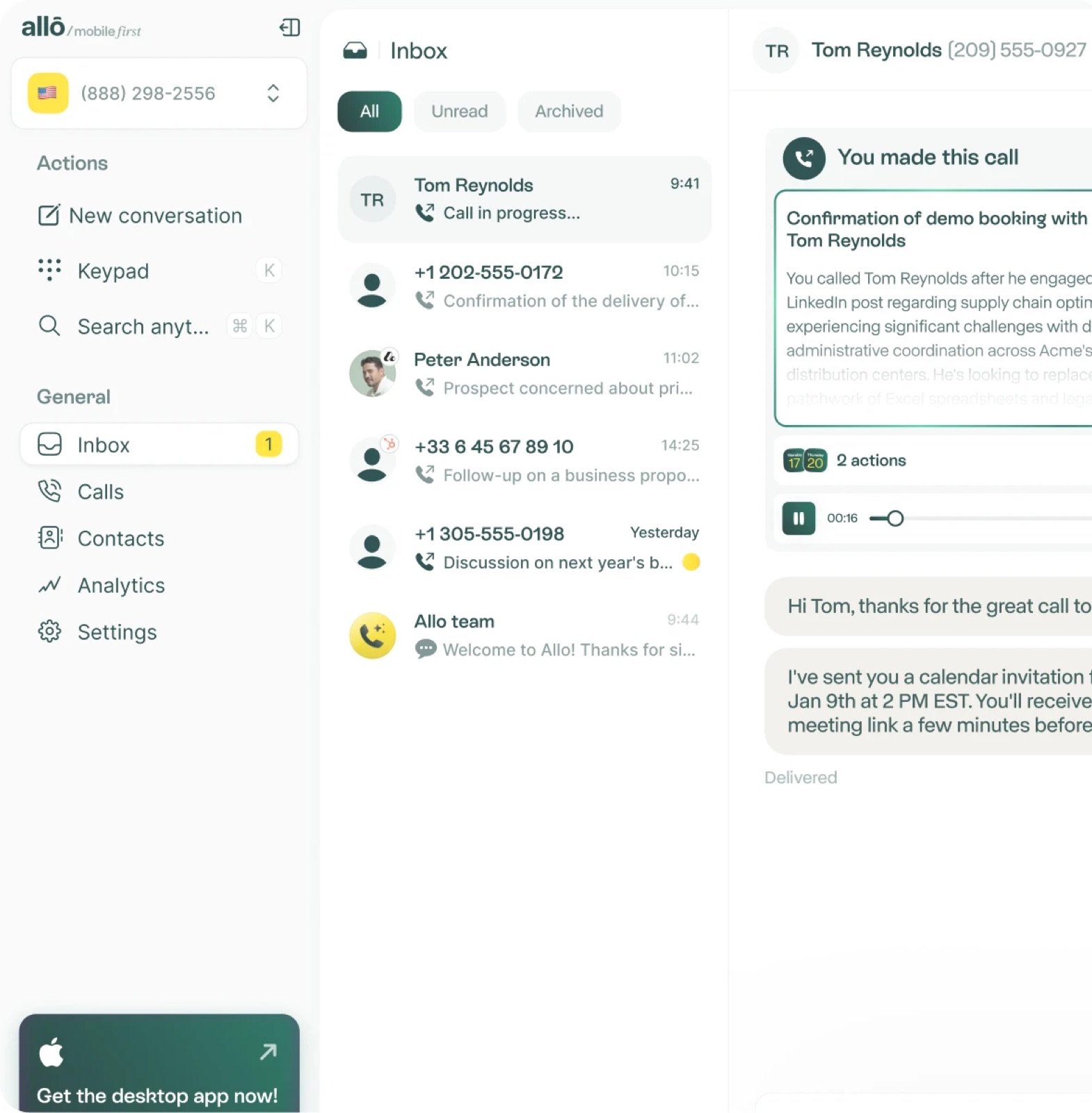
- Pricing: Starts at $18/user/month
- Features: Calling and texting, call recording, iOS and Android apps, shared inboxes
- Setup Time: 15 minutes
Allo is the #1 business VoIP system for modern sales teams. With it, you can make unlimited calls in the US and Canada. You can use our mobile app, desktop app, or web/browser app to call and text with customers from the devices you already own. You won’t be tied to a single location. Allo helps you field calls from anywhere with an internet connection.
Upgrade to Allo’s Business plan at $32 per user per month, and you’ll unlock everything your team needs to close more deals, faster. For example, you can:
- Connect with over 1,000 platforms via third-party integrations. You can also tap into the Allo API to build connections into your own apps.
- Keep tags on incoming calls and organize conversations via AI call tags. This can help you keep track of high call volumes and prioritize callbacks, depending on the need.
- Never miss another call with an AI receptionist. You can train your receptionist to answer FAQs, take info for callbacks, and qualify leads automatically for your team.
- Handle higher call volumes with shared numbers. Anyone on your team can pick up the phone and answer a question, so there’s always someone around to respond to customers.
- Capture conversations for future reference with on-demand or automatic call recording.
Then, easily skim through conversations and pull out keywords or important bits of knowledge using the AI audio agent.
Here’s what some of our happy customers had to say:
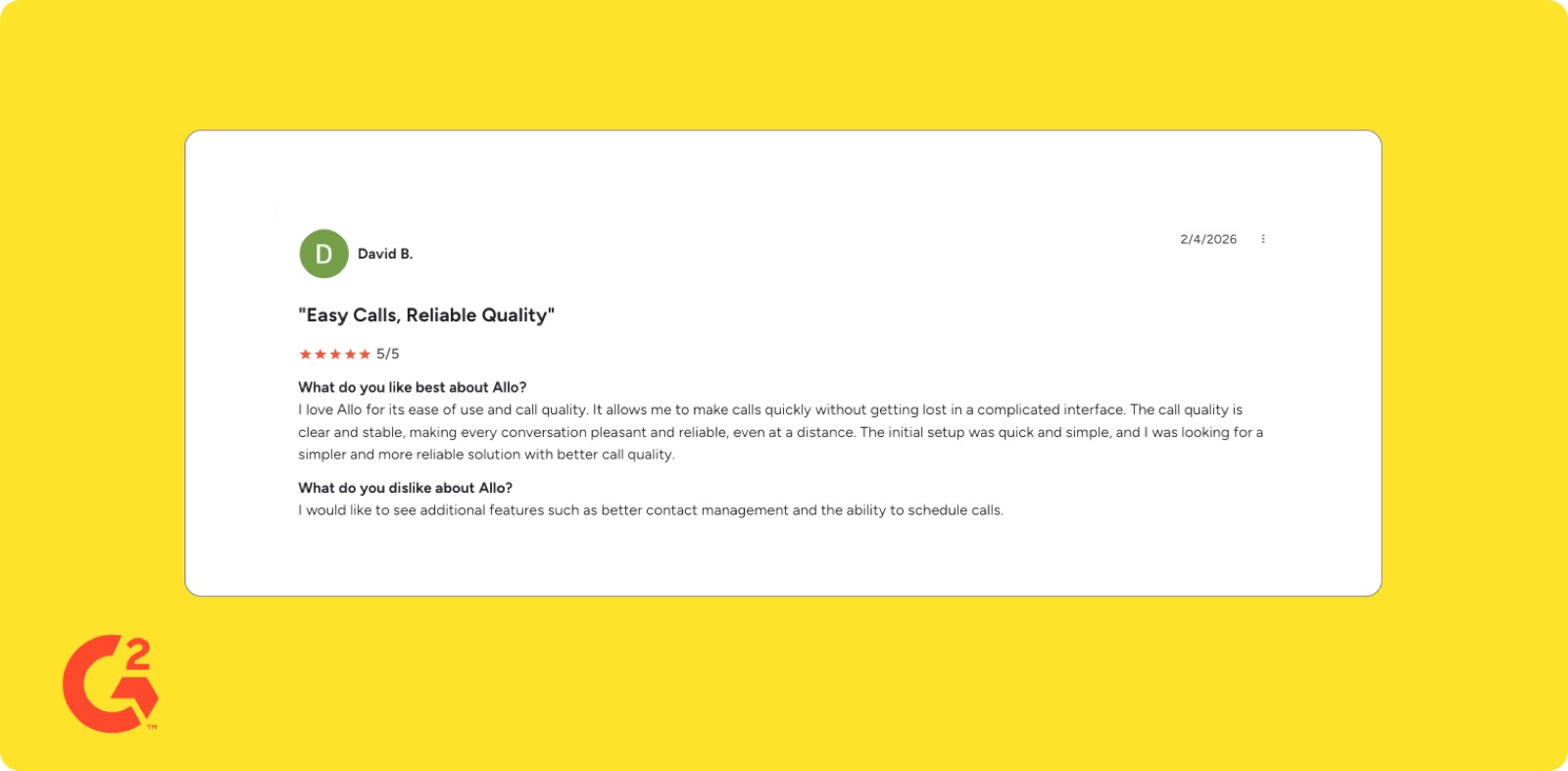
“The initial setup of Allo was super simple… It’s an excellent time saver and creates a super powerful multichannel on my CRM.”
“I appreciate the fact that it is easy to use.”
“The setup was very easy; my team just had to install an app and they were ready to go.”
Try Allo yourself with a seven-day free trial.
Ooma Office: Best for Traditional Office
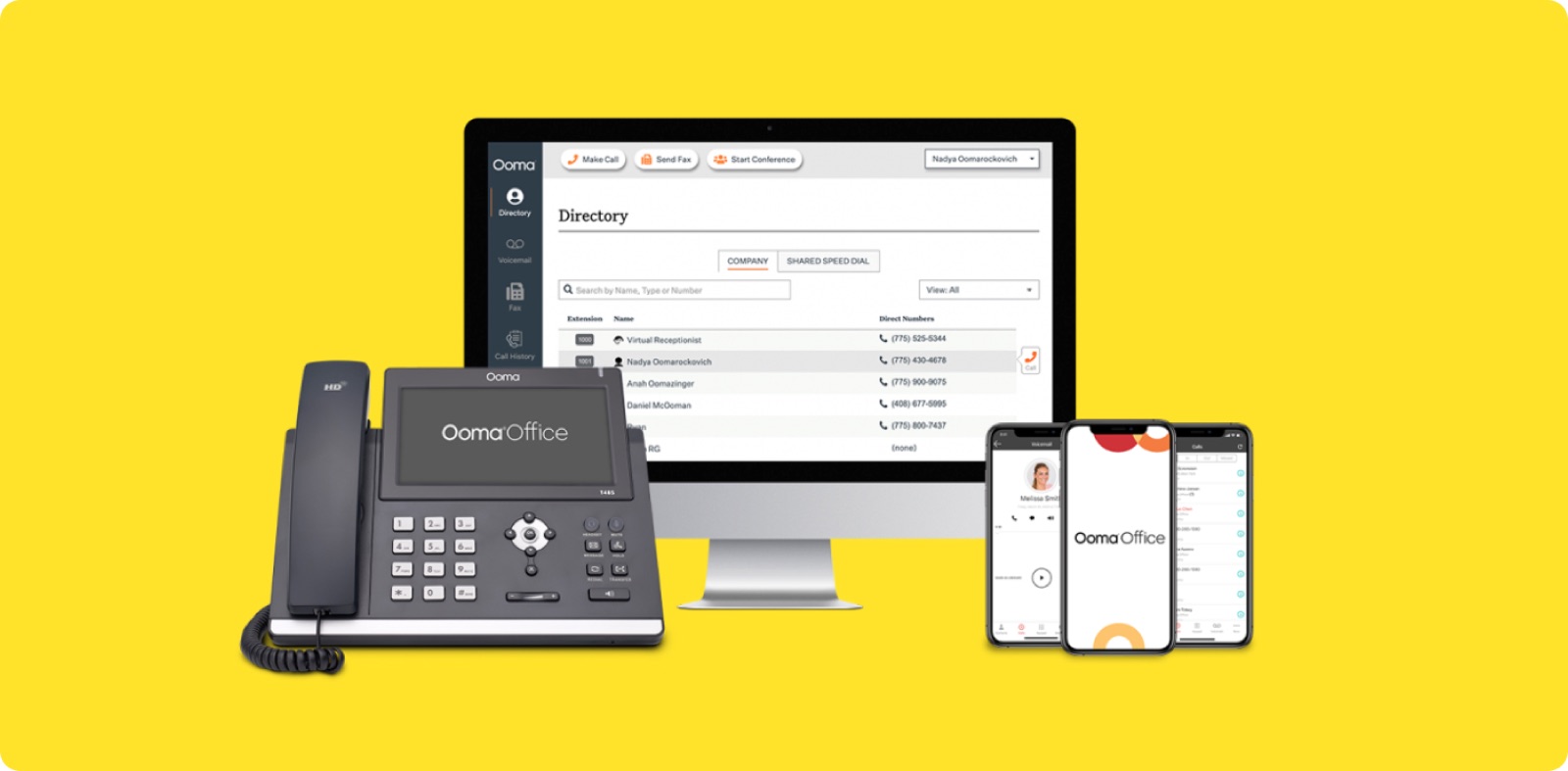
- Pricing: Starts at $19.95/user/month
- Features: Paging and intercom, desk phone support, text messaging (with upgrade)
- Setup Time: 1 to 2 days
Ooma is a legacy phone system designed for both residential and commercial users. The business side of the company, Ooma Office, offers all the basic features you’d need in a traditional office (think paging, intercom systems, and desk phone support). Each account also comes with one free toll-free number.
But again, remember that Ooma is a legacy (read: older) phone system. Many past users complain that the interface is outdated. Plus, the UI can be hard to navigate, which makes it take even longer to set up. And while the company advertises you can get started in “just 20 minutes,” many users complain that it takes a while to figure out the admin interface. There might also be bugs and glitches that make the process more confusing.
See for yourself:
“Sometimes a phone will go offline for no apparent reason and takes a while to get back online even though the internet connection is good and all other phones and devices are connected. The admin interface could be more intuitive.”
Vonage Business: Best for API Setups
- Pricing: Starts at $13.99/user/month
- Features: API add-ons, desk phone support (with upgrade), self-service integration setup (with upgrade)
- Setup Time: 2-8 days
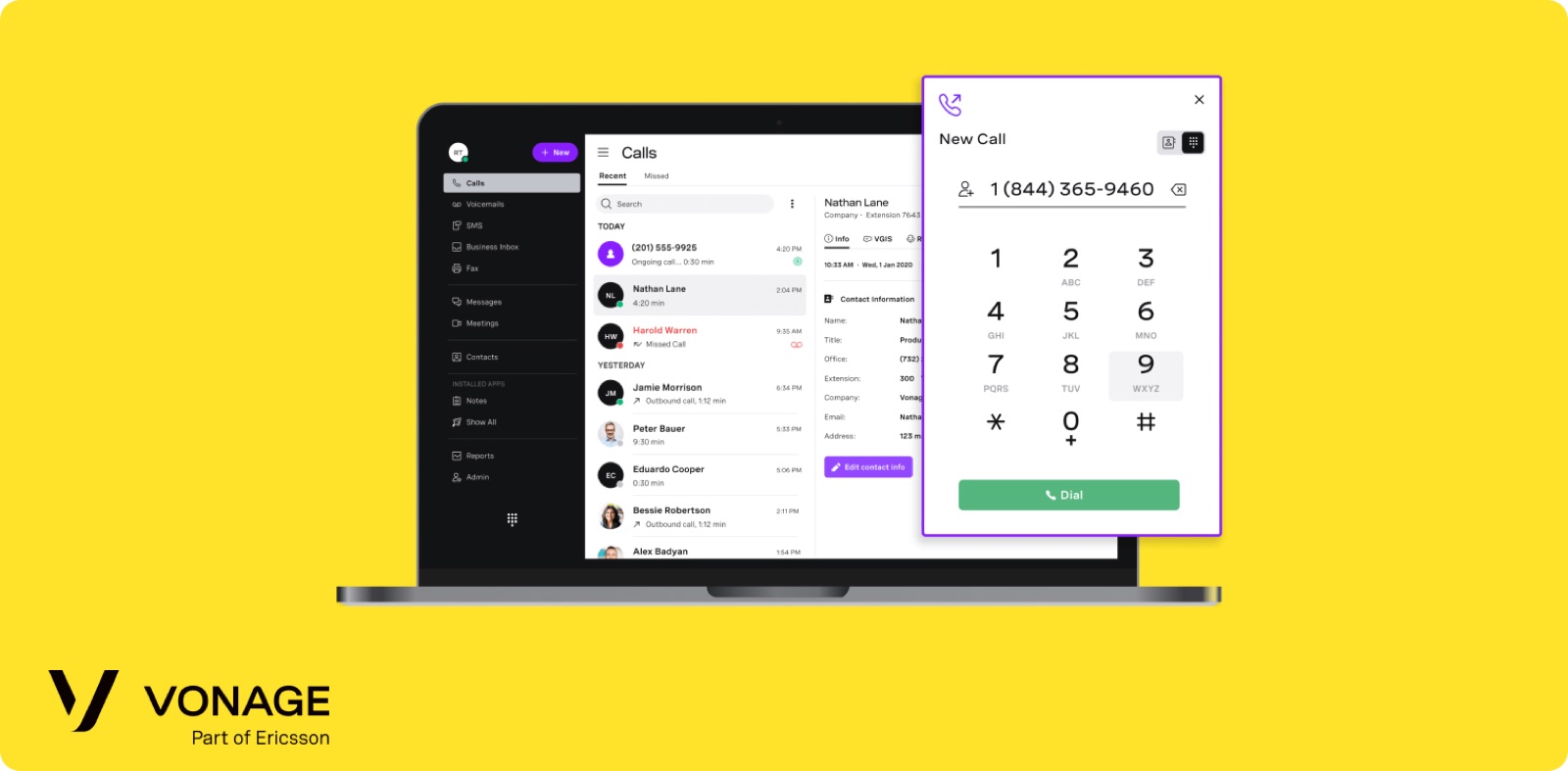
If you need a phone system that also lets you connect with other platforms, Vonage might be a solid option for you. It offers an out-of-the-box phone system that offers basic calling, texting, and voicemail features. You can also use its APIs to set up its services in other apps, including SMS/MMS, phone calls, and more.
But while Vonage offers lots of different configuration options, some users complain it’s a bit too much for their needs. You might be overwhelmed by the number of settings available, even if you’re just a small business that only needs a few simple tools.
Vonage, like Ooma, also suffers from some UI troubles. Past users say that certain settings and features take a long time to locate, especially if you don’t have much of a background in IT. Speaking of IT resources, Vonage requires a fairly tech-heavy implementation, which can be frustrating for teams without much of a background. Its API setups might require several days or even weeks of work.
You also won’t be able to set up all features independently. Some users say you’ll need to call customer support to configure things like routers, desk phones, and online faxing.
No need to take our word for it, though:
“Initial setup was a bit involved, and took longer than expected.”
“Another area for improvement is the user interface, which can feel slightly outdated and less intuitive compared to some newer communication platforms. Certain settings and features take extra time to locate, especially for new users.”
“The setup process can be complicated with lots of options and some options override other options without there being any clear way for you to see.”
“When I received the new system, I had to set up everything from scratch. I had provided them a ton of information on what configuration we needed, but we were told they would be plug-and-play when we received them. They were not. I spent countless hours on the phone with Tech Support, so they could configure our routers, phones, faxes etc. Training was horrible. They flew past the bare essentials and referred me to how-to videos for the rest. I wish I had known then what I know now. I would have looked elsewhere, which is what I am doing now.”
Nextiva: Best for Omnichannel Setups
- Pricing: Starts at $15/user/month
- Features: Social media integrations, video calls, simple IVR (with two upgrades)
- Setup Time: 3 days to 3 weeks
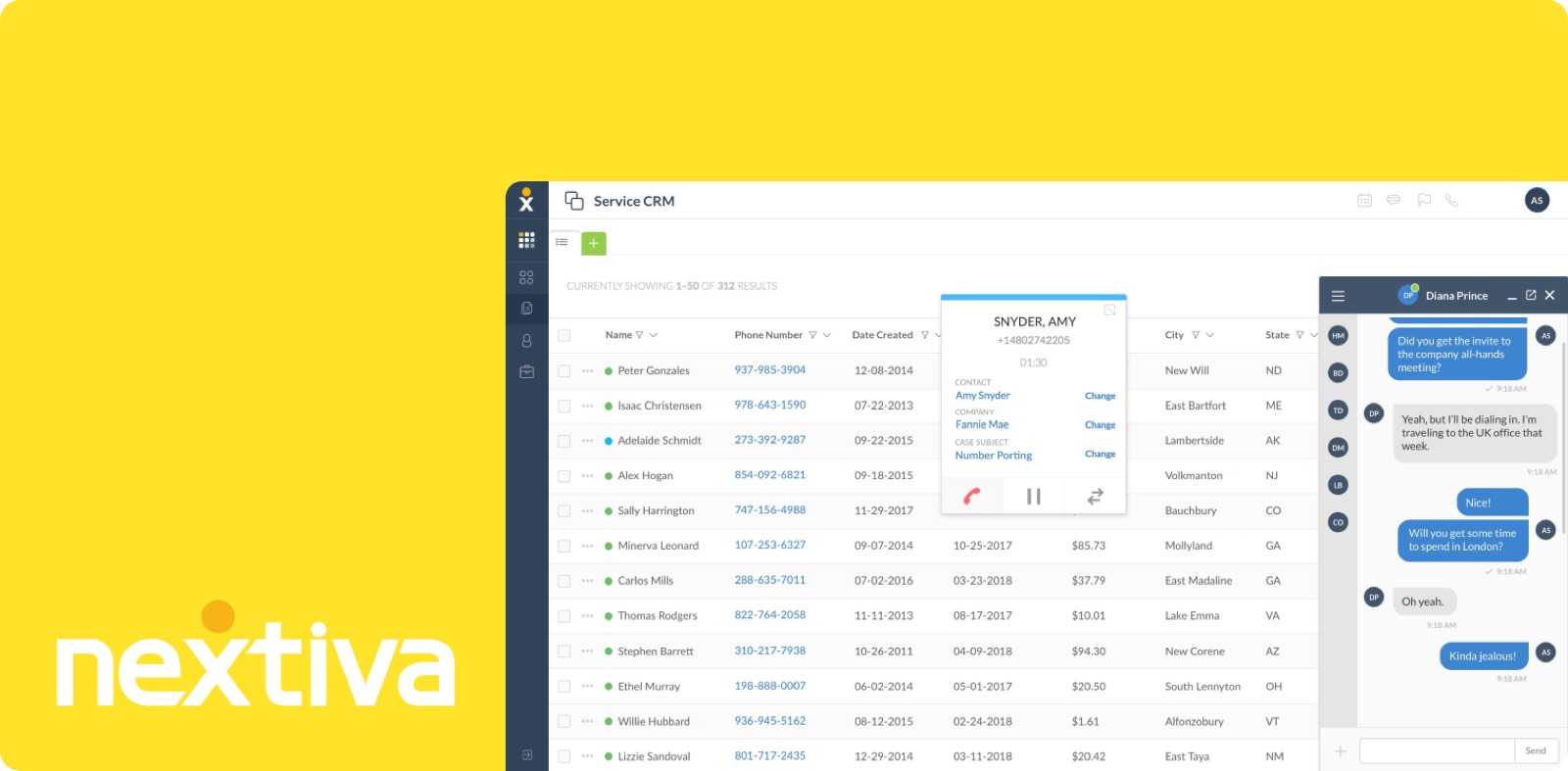
You might remember Nextiva as one of the first business VoIP systems on the market. Today, it’s become an omnichannel customer communication platform, which means it connects with social media platforms, messaging apps, and review management tools. It also offers some omnichannel communications tools — including video calls — which can be useful if you need to communicate with customers through video conferencing.
Just keep in mind that Nextiva’s setup times are the longest on this list. Their Service Team says it takes “a few days to a few weeks” to complete initial setup, not including special add-ons like call recording and online faxing.
That’s because Nextiva is well known for being overly complex. Its setup is notorious for unnecessary complexity, and you’ll have to call support so they can activate certain features (like adding new users). This can get frustrating fast, especially for small and growing teams.
If you’re well-versed in VoIP technology, Nextiva might offer the level of depth and configuration you need. But if you’re just getting started with your first-ever phone system, you might want to consider a less confusing alternative.
We’ll let these reviews do the talking:
“While the platform works well overall, it can sometimes feel a bit overwhelming with the number of features. Some advanced settings aren’t as intuitive as the basics, so it takes a little trial and error to figure them out.”
“This is the most frustrating company i’ve ever worked with. I have to call for everything - adding users, changing any settings or basic setup/configuration, and it always takes an hour or multiple hours to get it resolved across multiple reps. Conflicting information from different reps about how to set things up. Then we set it up and texts break. Then fix texts and calls break. All of this is live on my phone line that customers are calling. The root cause is the product has zero self-serve functionality whatsoever combined with a support team that has no idea how to configure the product, along with 20min+ hold times and multiple transfers to even get to a person who’s job title is supposed to be able to answer the question.”
“There is so many steps to onboarding when we were told it was supper easy in the beggining, I’d rather take the honesty.”
How To Choose The Right Business VoIP System
Before you even think about setting up your business VoIP system, you’ll need to make sure you’re using a platform that can scale with you.
The following checklist can help you purchase the right software for your needs:
Decide What Features Your Business Needs
This includes features you’ll need both now and in the future. For example:
- How many users do you expect to have?
- How many simultaneous calls will they need to have?
- What are your must-have features from VoIP phone services? Any that you’ll need to grow into over time?
- Will you need additional or separate numbers beyond one per user? What about dedicated extension numbers?
- What integrations do you need to get started? Specific CRM systems? What about job management tools or connecting apps like Zapier?
Check Your Budget (and Watch for Hidden Fees)
Money and speed aren’t everything when buying a business VoIP system, but they’ll still affect the VoIP system you choose.
For the budget, determine how much you’d be willing to spend on both software and hardware on a monthly or yearly basis. This includes your VoIP platform, add-ons, upgrades, and third-party apps (like your CRM integration). Keep in mind you’ll spend much less on a VoIP platform that doesn’t require handsets or desk phones — including Allo.
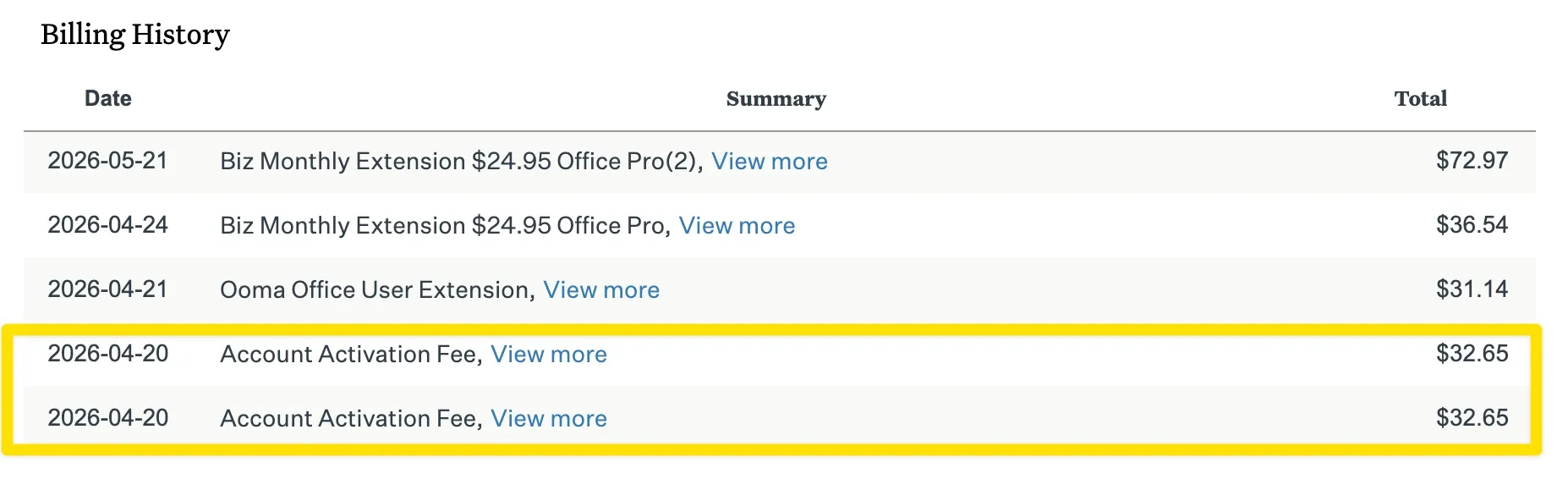
Another easy way to rack up the price: hidden costs that tack onto your plan. Make sure to keep an eye out for sneaky fees in services like:
- Onboarding
- Customer support
- Phone number porting
Evaluate Your Tertiary Requirements
So you’ve looked at your requirements on a specific platform, but have you considered what said platform might need from you?
For a VoIP system, one of the biggest pieces of the puzzle is your internet connection. You can use an internet speed test like Ookla or Fast.com to see if it meets minimum requirements (which is a 500 Mbps download speed). Your most reliable connection will be through an Ethernet connection, but if this isn’t a possibility, just make sure your WiFi is fast and reliable.
Keep in mind that using multiple devices on the same network can take up bandwidth, which splits your Mbps allotment between multiple devices. If you work in a busy office environment, this could directly affect your voice quality on a platform. Be sure to take inventory of your internet-connected devices and check user reviews to determine how well a VoIP platform works with your use case (i.e., in a traditional office versus working from the field).
Choose Between Hardware or No Hardware
The vast majority of VoIP systems today do not require hardware to get up and running. But if you’re not ready to get rid of your traditional desk phone setup yet, or if you already have existing equipment and want to eke out a few more years of use, you could try a provider that supports desk phones.
Just keep in mind desk phones are fairly expensive, starting around $60/unit. You also need to worry about maintenance, upkeep, and replacements, which can add up quickly over the years.
A much cheaper option is to opt for Softphones, which run on your computer so you can call and text directly from your cubicle. You only deal with one piece of hardware, which most team members likely already own. In fact, many business VoIP systems like Allo let you use existing cell phones and tablets without mixing personal and professional calls.
Frequently Asked Questions About How to Set Up a Business Phone System
Can I set up my own VoIP system?
Yes, it’s entirely possible for you to set up your own VoIP system. However, some platforms are much more complex than others. Certain systems may require you to install physical hardware, bypass firewalls, or disable SIP ALG on your routers. Others, like Allo, let you use devices you already own. This lets you complete the entire signup process from your browser in 15 minutes or less.
What is the main disadvantage of VoIP?
The biggest disadvantage of VoIP is that it needs an internet connection to help you make or receive calls. The good news is, you don’t need much bandwidth. VoIP calls require download speeds of 0.5 Mbps or less.